
Learning how to convert AVIF to JPG efficiently is becoming increasingly important for digital professionals, content creators, and web developers. AVIF format represents the future of image compression with superior efficiency and quality, yet converting AVIF to JPG remains necessary because JPG maintains universal compatibility across all devices and platforms. This comprehensive guide will teach you everything about how to convert AVIF to JPG successfully, from understanding why the conversion is necessary to mastering the best tools and techniques available today.
Why Convert AVIF to JPG?
AVIF files are modern, next-generation images offering exceptional compression. However, several scenarios require you to convert AVIF to JPG:
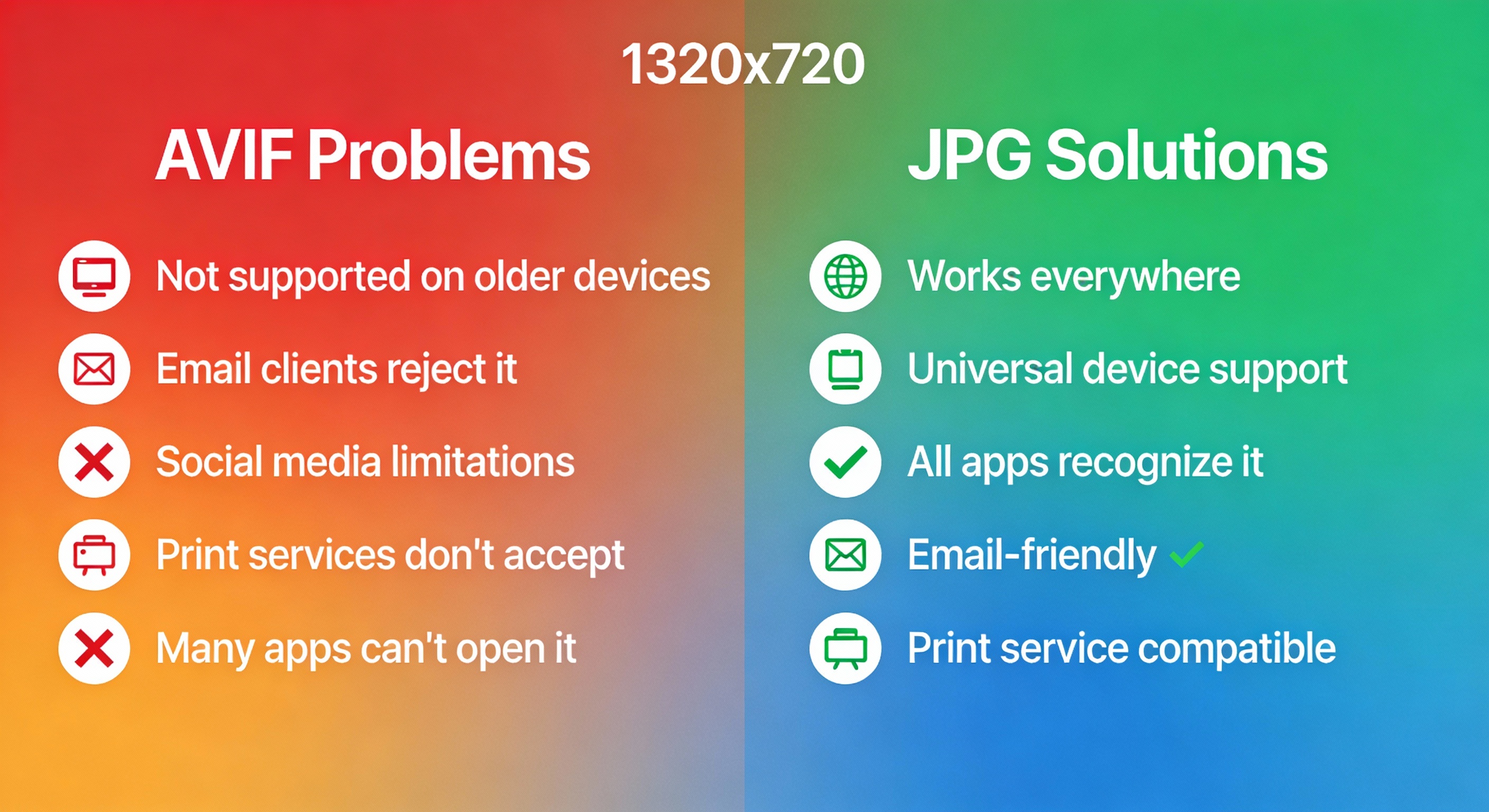
Social Media Compatibility – Platforms like Instagram, Facebook, and Twitter may not fully support AVIF yet, making it necessary to convert AVIF to JPG before uploading
Email Sharing – Most email clients don’t recognize AVIF format, requiring users to convert AVIF to JPG to ensure recipients can view images
Legacy Device Support – Older cameras, phones, and computers don’t recognize AVIF, making conversion to JPG essential for accessibility
Print Services – Photo printing and professional print services only accept JPG files, requiring conversion before uploading
Software Compatibility – Many image editing applications and software don’t support AVIF yet, necessitating conversion to JPG for editing
Website Analytics – Some analytics tools don’t recognize AVIF files, requiring conversion to JPG for proper tracking
Universal Sharing – When you need your images to work everywhere, converting AVIF to JPG guarantees compatibility
How to Convert AVIF to JPG: Complete Step-by-Step Guide
Method 1: Using Online Conversion Tools (Easiest)
The simplest way to convert AVIF to JPG is through free online conversion platforms. Here’s how:
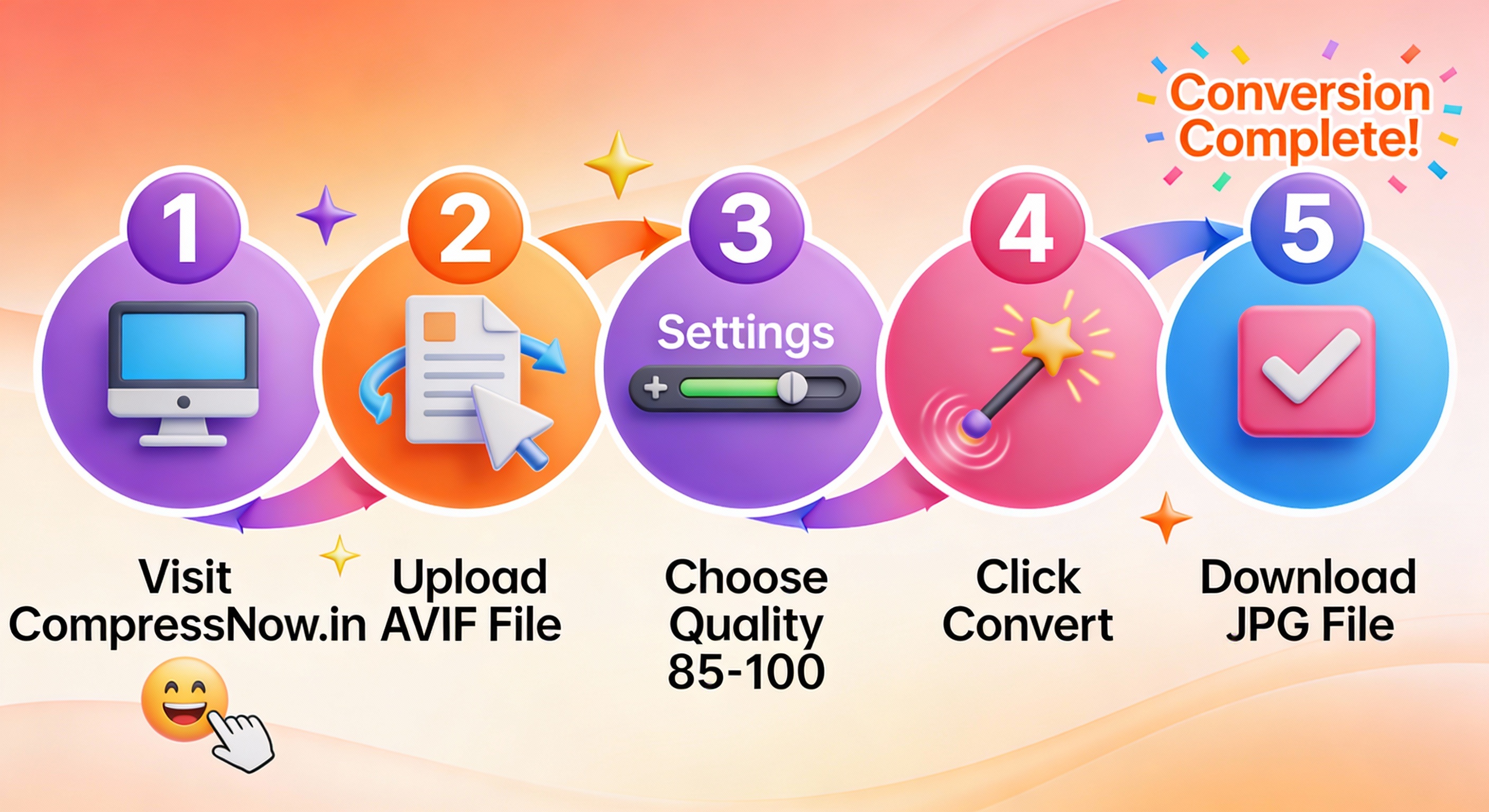
Step 1: Choose Your Conversion Platform
Popular platforms for converting files include:
CompressNow.in – Fast, reliable conversion with excellent quality preservation
Pixelied – Supports batch processing and 100+ image formats
Picflow – Ad-free, browser-based conversion without server uploads
Convertio – Cloud-based platform with professional-grade conversion
Cloudinary – Enterprise-level conversion with API access
Step 2: Upload Your AVIF File
Click the upload button or drag-and-drop your file
Select your AVIF image from your computer
Wait for the upload to complete
Multiple files can be uploaded for batch conversion
Step 3: Configure Conversion Settings
Before initiating conversion, configure:
Output quality (recommended: 85-100 for best results)
Image dimensions if resizing is needed
Compression level for optimal file balance
Background color for any transparent areas
Step 4: Start the Conversion Process
Click the convert button
Monitor the progress bar as conversion processes
Wait for the completion notification
The process typically takes just seconds
Step 5: Download Your Converted JPG
Click download to save your converted file
Verify the file downloaded successfully
Open the image to confirm quality
Store in your preferred location

Method 2: Using Desktop Software
For offline conversion, several applications work effectively:
Adobe Photoshop:
Open your AVIF file in Photoshop
Navigate to File > Export As
Select JPG as the output format
Adjust compression settings as needed
Click Export to complete conversion
GIMP (Free Alternative):
Open your AVIF file in GIMP
Go to File > Export As
Choose JPG from the format dropdown
Configure JPEG quality and compression
Click Export to finish conversion
IrfanView:
Open your AVIF file in IrfanView
Use File > Batch Convert for multiple files
Select JPG as the output format
Adjust compression settings
Complete the conversion process
ImageMagick (Command-Line):
Use:
convert image.avif image.jpgAdd quality:
convert image.avif -quality 85 image.jpgFor batch:
convert *.avif *.jpg
Method 3: Batch Conversion for Multiple Files
When handling multiple AVIF files, batch conversion saves significant time:
Select all your AVIF files
Upload them to a batch-capable converter
Configure conversion settings once
Process all files simultaneously
Download all converted JPG files as a ZIP archive
Best Tools to Convert AVIF to JPG
Top Online Conversion Platforms
CompressNow.in ⭐ Recommended
CompressNow.in stands out as an exceptional platform for converting files. This tool offers:
Specialized conversion capabilities with excellent quality preservation
Fast processing without quality loss
User-friendly interface perfect for beginners
Secure conversions with no file storage
Completely free service with no registration required
Batch conversion capabilities for multiple images
Visit CompressNow.in for reliable, fast conversion of your files!
Pixelied
Fast and reliable conversion process
Batch processing for multiple images
100+ image format options available
High-quality output with custom settings
Completely free with no watermarks
Picflow
Ad-free conversion experience
Browser-based processing for fast results
Batch conversion capabilities
Private and secure with no server uploads
Easy-to-use interface
Convertio
Cloud-based conversion platform
Professional-grade image quality
Large file support up to 2GB
API access for developers
Multiple format options
Cloudinary
Enterprise-level conversion services
Real-time processing for web optimization
Advanced settings and customization
API integration for automation
High-performance CDN delivery
Quality Preservation When Converting Files
Best Practices for Maintaining Excellence
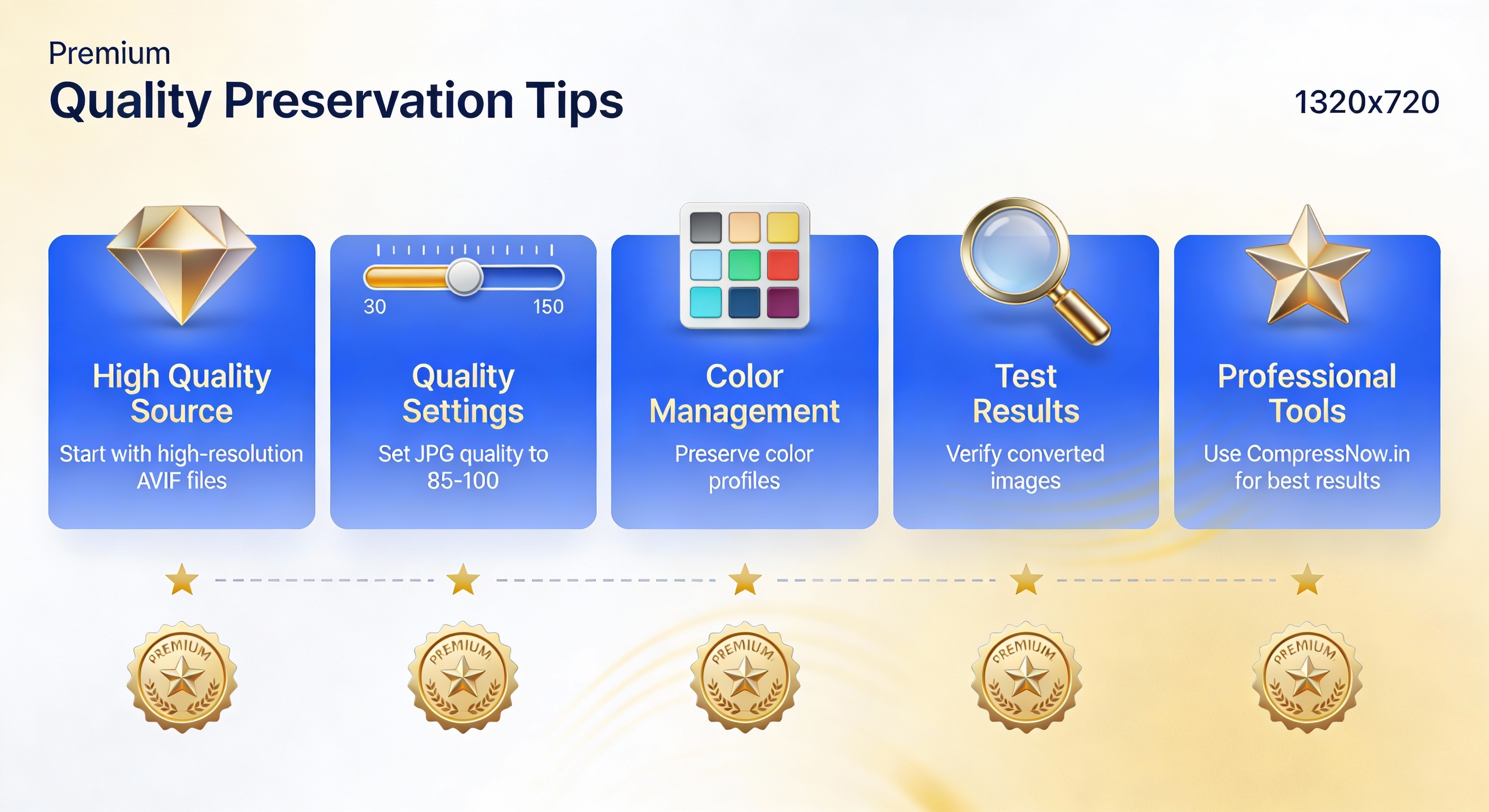
Start with High-Quality Source Files:
Use high-resolution AVIF files with minimal compression
Verify image details are clearly visible before conversion
Plan quality settings based on your AVIF file’s original quality
Configure Optimal Settings:
Set quality to 85-100 for best results
Use progressive JPG compression for web optimization
Maintain original image dimensions when possible
Preserve color profiles during conversion
Handle Transparency Properly:
AVIF supports transparency but JPG does not
Choose an appropriate background color for transparent areas
Test color combinations before final conversion
Consider PNG alternative if transparency is critical
Verify Your Results:
Compare original and converted images side-by-side
Check color accuracy and detail preservation
Test converted file in multiple applications
Verify image dimensions and aspect ratio remain correct
Common Issues and Solutions
Troubleshooting Conversion Problems
Image Looks Pixelated:
Use higher quality settings (90-100) during conversion
Ensure your source file has sufficient resolution
Choose a converter that doesn’t apply excessive compression
Colors Appear Different:
Verify color profile preservation in converter settings
Use premium converters with advanced color handling
Check original file for color accuracy before conversion
File Size Larger Than Expected:
Reduce JPG quality setting to 70-85
Use progressive JPG option for web optimization
Try different compression algorithms if available
Transparency Turned Into Solid Color:
Select appropriate background color before converting
Consider PNG format if transparency is essential
Use background removal tools before conversion
Conversion Takes Too Long:
Use browser-based converters for faster processing
Try batch conversion with multiple files simultaneously
Ensure stable internet connection for online tools
Converting Files: Essential Information
Understanding the Process
What Happens During Conversion:
When you convert AVIF to JPG, the conversion tool reads your AVIF file and re-encodes it using JPG compression. This process involves:
Reading the AVIF file’s data and color information
Decoding the AV1 compression used in AVIF
Re-encoding using JPG’s lossy compression algorithm
Adjusting quality settings based on your preferences
Creating a new JPG file compatible with all devices
Format Differences:
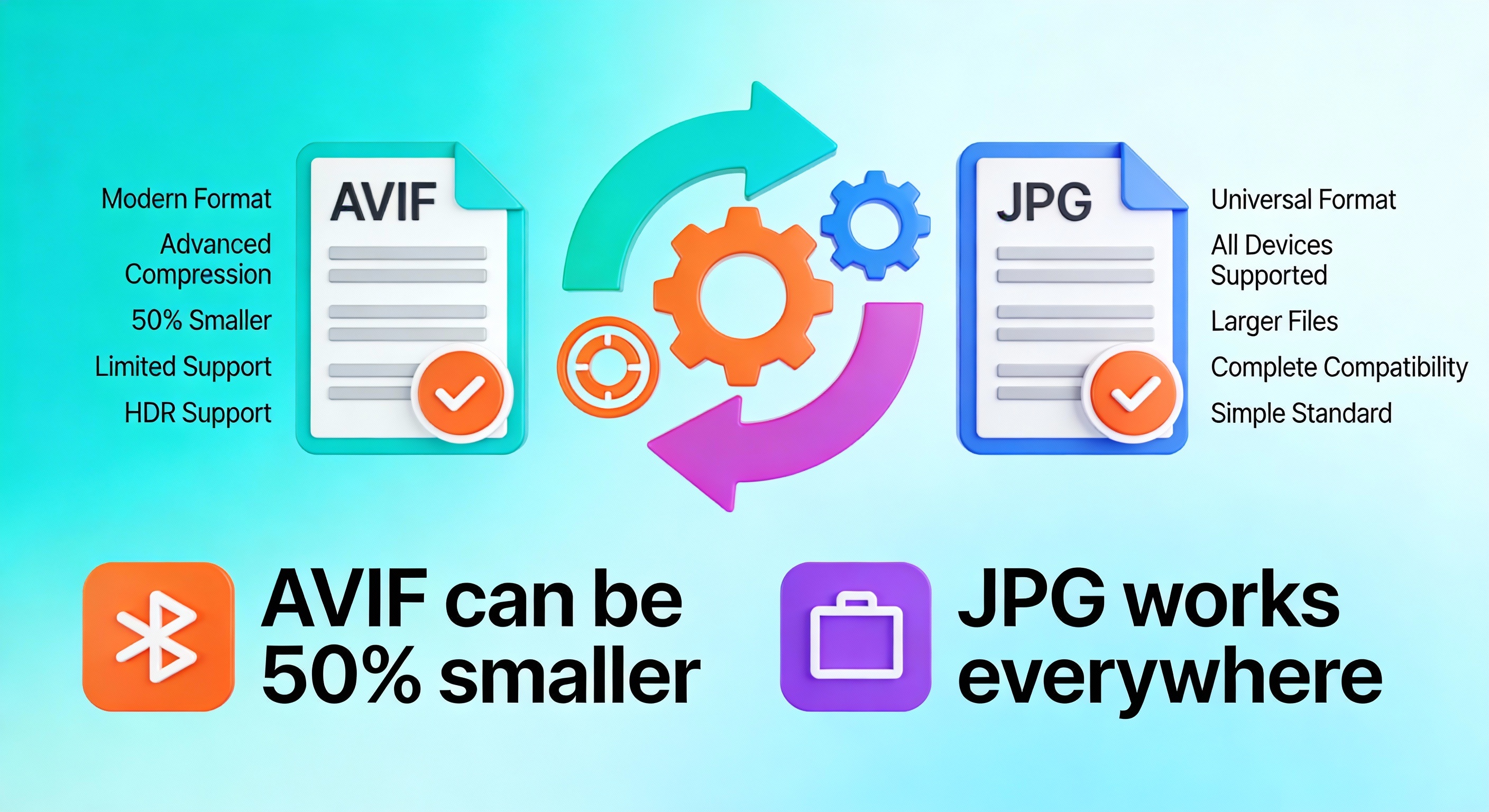
AVIF – Modern format with advanced compression, supports HDR, transparency, and animation
JPG – Traditional format with universal compatibility, no transparency or animation support
AVIF files can be 50% smaller than equivalent JPG files
JPG files work everywhere while AVIF has limited device support
Quality vs Compatibility Tradeoff
Understanding this tradeoff is crucial:
AVIF – Superior quality at smaller file sizes, limited compatibility
JPG – Good quality, slightly larger files, universal compatibility
Conversion – Increases file size but ensures universal access
Choice – Balance between optimal quality and widest audience reach
Professional Tips for Converting Files
Optimization Strategies
For Web Professionals:
Serve AVIF to modern browsers for better performance
Fall back to JPG for older browsers
Use HTML5 picture element for format selection
Monitor browser support to optimize strategy
For Photographers:
Maintain original AVIF files for archival purposes
Convert to JPG for distribution and sharing
Use quality setting 90+ for professional work
Test on multiple displays for consistency
For Content Creators:
Convert files before social media uploading
Optimize quality based on platform requirements
Use batch conversion for efficiency
Document conversion settings for consistency
For Web Developers:
Implement responsive image strategies
Use API-based conversion for automation
Track conversion metrics for optimization
Integrate conversion into build workflows
Step-by-Step: Using CompressNow.in
Complete Walkthrough
1. Access the Platform:
Open your web browser
Navigate to compressnow.in
Locate the conversion tool section
2. Upload Your File:
Click “Choose File” or drag-and-drop
Select your AVIF image
Wait for upload completion
3. Configure Settings:
Set output format to JPG
Review any preview options
4. Start Conversion:
Click the “Convert” button
Monitor conversion progress
Wait for completion notification
5. Download Result:
Click “Download” to save converted file
Verify successful download
Check image quality in your viewer
Conclusion: Mastering the Conversion Process
Learning how to convert AVIF to JPG is an essential skill for anyone working with digital images. While AVIF format represents cutting-edge image technology with superior compression, the need to convert AVIF to JPG remains critical for universal compatibility. Understanding when and how to convert your files ensures your images display perfectly across all platforms and devices. The process of converting images between formats has never been easier, with platforms like CompressNow.in making the task simple and accessible. Whether you’re handling single images or performing bulk conversions, the tools and techniques outlined in this guide will help you achieve professional results. Start using these conversion methods today to optimize your image workflows and ensure your content reaches the widest possible audience with maximum compatibility and quality.
What exactly does it mean to convert AVIF to JPG, and why would I need to do this?
Converting AVIF to JPG is the process of transforming a modern AVIF image file into a traditional JPG format that works universally across all devices and platforms. You might need to convert AVIF to JPG for several important reasons: social media platforms may not support AVIF files yet, email clients often reject AVIF format, older devices and cameras don’t recognize AVIF, print services only accept JPG files, and many software applications haven’t added AVIF support. Understanding when to convert AVIF to JPG helps ensure your images reach the widest possible audience. The primary advantage of choosing to convert AVIF to JPG is gaining universal compatibility while maintaining good image quality.
What are the best online platforms available to convert AVIF to JPG, and which one should I choose?
There are several excellent online platforms designed to help you convert AVIF to JPG quickly and easily. CompressNow.in stands out as the recommended choice, offering fast, reliable conversion with exceptional quality preservation and a user-friendly interface that makes it simple to convert AVIF to JPG. Other quality options include Pixelied (great for batch processing), Picflow (ad-free conversion experience), Convertio (cloud-based platform), and Cloudinary (professional-grade conversion). When selecting a tool to convert AVIF to JPG, consider factors like conversion speed, quality settings available, batch processing capabilities, and ease of use. Most platforms are completely free and work directly in your web browser, requiring no software installation. Testing a few converters will help you find which platform works best for your workflow when you need to convert AVIF to JPG.
How do I ensure I maintain excellent image quality when I convert AVIF to JPG?
Maintaining quality when you convert AVIF to JPG requires attention to several important factors. Always start with high-resolution, high-quality AVIF source files before you attempt to convert AVIF to JPG, since the conversion process can only preserve existing quality. During the conversion, set your quality settings to 85-100 to ensure excellent results when you convert AVIF to JPG. Enable color profile preservation in your chosen converter to maintain color accuracy throughout the conversion process. Remember that AVIF supports transparency while JPG does not, so carefully select an appropriate background color for any transparent areas before you convert AVIF to JPG. After completing the conversion, always verify your results by comparing the original AVIF file with the converted JPG side-by-side. These quality-focused practices ensure your conversion produces professional results every time.
What common problems might occur when I try to convert AVIF to JPG, and how can I fix them?
Several issues can arise when you convert AVIF to JPG, but most have straightforward solutions. If your converted image appears pixelated, try using higher quality settings (90-100) and ensure your source file has sufficient resolution before you convert AVIF to JPG. When colors look different after conversion, verify that your converter supports color profile preservation and consider using a premium tool. If your converted file is larger than expected, reduce the quality setting to 70-85 or use progressive JPG compression. When transparency disappears during conversion, remember that JPG doesn’t support transparency, so you should select an appropriate background color before you convert AVIF to JPG, or consider using PNG format if transparency is essential. If conversion takes too long, switch to a faster browser-based converter like CompressNow.in, ensure you have a stable internet connection, and try processing fewer files at once. These troubleshooting steps address the most common issues people encounter when they convert AVIF to JPG.
Need to Compress or Convert Files?
Try CompressNow.in - Free, Fast & Secure file compression and conversion tools!

Author Bio – Tanishk Singh
Tanishk Singh is a Digital Marketing Strategist, SEO Specialist, and Web Technology Expert with over 4+ years of hands-on experience in building, ranking, and monetizing high-performance web platforms.
He has helped scale organic traffic for multiple education and SaaS websites, including increasing Shoolini Online’s SEO traffic from 800 to 20,000+ users in just 2.5 months using advanced content architecture, AI-driven SEO, and Google SGE optimization.
Tanishk specializes in creating AI-powered web tools, performance-optimized platforms, and SEO-focused websites that rank, convert, and generate consistent revenue.