
Hey there! Ever found yourself staring at a “Save As” dialog box, wondering about the difference between PDF and JPG? You’re definitely not alone. Understanding the difference between PDF and JPG is crucial because these two file formats are everywhere in our digital lives, but they serve completely different purposes. Let me break it down for you in plain English, and by the end of this guide, you’ll know exactly which format to use in every situation.
What Exactly Are These File Types?
Before we dive into the nitty-gritty differences, let’s quickly understand what we’re actually dealing with.
JPG (or JPEG) stands for Joint Photographic Experts Group, named after the committee that created it. It’s an image format that’s been around since the early ’90s and has become the universal standard for digital photography. Think of it as the language your camera speaks when it captures photos. When you snap a picture on your phone, chances are it’s saving as a JPG by default.
PDF stands for Portable Document Format, created by Adobe back in 1993. It’s like a digital container that can hold text, images, links, buttons, forms, and pretty much anything else you’d find in a document. The genius of PDF is that it looks the same on every device, whether you’re viewing it on a Windows PC, Mac, tablet, or smartphone.
Need to Compress or Convert Files?
Try CompressNow.in - Free, Fast & Secure file compression and conversion tools!
Difference Between PDF and JPG

Purpose and Design
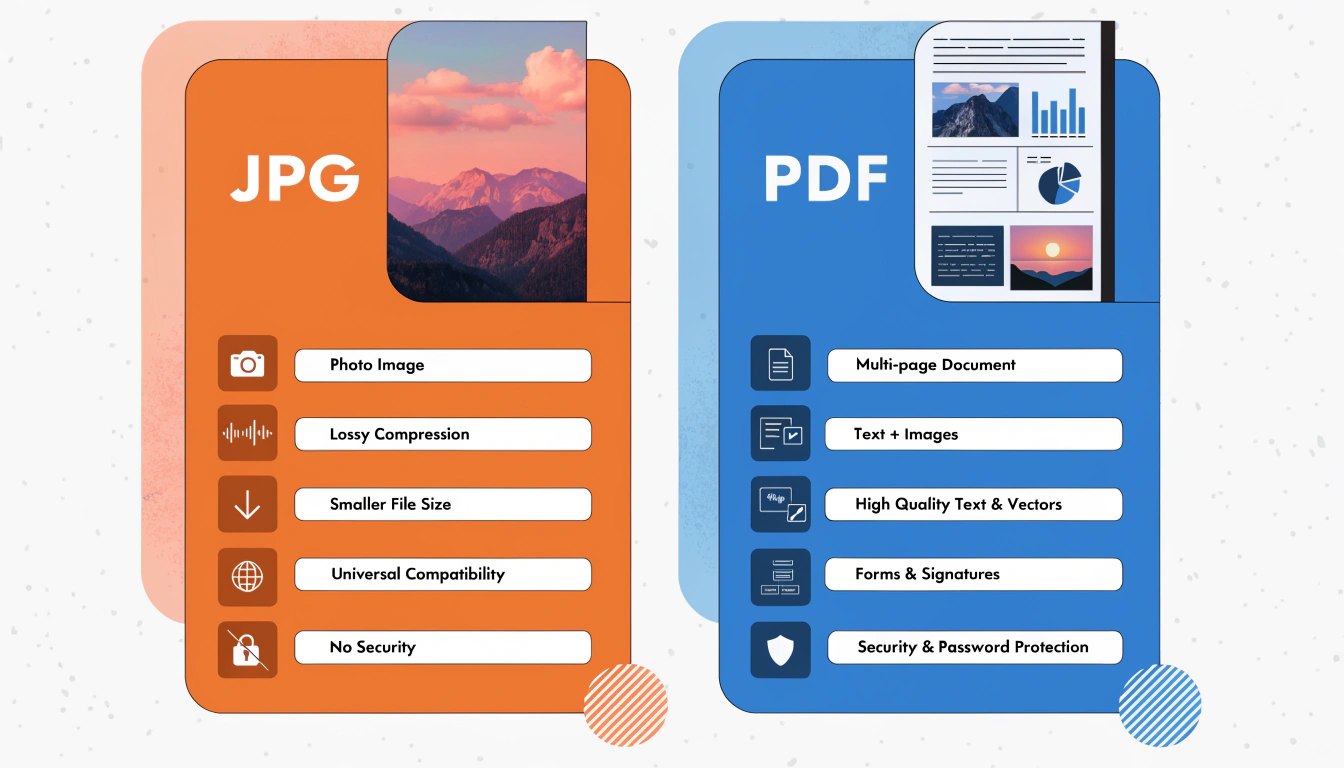
Here’s the biggest difference that drives everything else: JPG is made for images, while PDF is made for documents.
When you take a photo with your phone, it automatically saves as a JPG because that format is specifically designed to handle the millions of colors and subtle details in photographs. JPGs excel at representing continuous-tone images like photos, artwork, and graphics with color gradients.
PDFs, on the other hand, were created to preserve the exact layout and formatting of documents, whether that’s a resume, contract, magazine, or ebook. Adobe designed PDFs to solve a specific problem: how do you share a document and ensure it looks identical on everyone’s computer, regardless of what fonts they have installed or what software they’re using?
What They Can Hold
A JPG file can only contain one single image. That’s it. Nothing more, nothing less. It’s a flat, two-dimensional image with no additional layers or complexity.
A PDF? It’s like a digital briefcase that can hold an entire office worth of materials. You can pack in:
- Multiple pages (hundreds or even thousands)
- Images in various formats (including JPGs!)
- Formatted text with different fonts, sizes, and styles
- Clickable hyperlinks and bookmarks
- Interactive forms that people can fill out
- Digital signatures
- Embedded fonts so text displays correctly everywhere
- Annotations and comments
- Tables, charts, and diagrams
- Audio and video files (in some cases)
This is why PDFs are perfect for reports, presentations, ebooks, magazines, and any multi-page document that needs to maintain its structure.
Quality and Compression
This is where things get technical, but I’ll keep it simple.
JPG uses what’s called “lossy compression.” In simple terms, it analyzes your image and throws away data it thinks you won’t miss to make the file smaller. The algorithm is pretty smart—it removes information in ways that are usually hard for human eyes to detect. But here’s the catch: every time you edit and save a JPG, it recompresses and loses a tiny bit more quality. It’s like making a photocopy of a photocopy—eventually, you’ll notice the degradation.
The amount of quality loss depends on your compression settings. You can save a JPG at high quality (larger file) or low quality (smaller file). Most cameras and phones use a good balance by default.
PDFs handle compression differently. They can include images in various formats and don’t necessarily compress them the same way. If you put a high-quality image in a PDF, it can stay high-quality. PDFs are particularly good at preserving the crispness of text and vector graphics (like logos and diagrams) because they can store these as mathematical descriptions rather than pixels.
Some PDFs also use compression, but you have more control over it. You can create PDFs that preserve maximum quality for professional printing, or compress them heavily for web sharing.
Editing Capabilities
Want to edit a JPG? You’ll need photo editing software like Adobe Photoshop, GIMP, or even simple apps on your phone like Snapseed or the built-in photo editor. With these tools, you can:
- Crop and resize the image
- Adjust brightness, contrast, and colors
- Add filters and effects
- Remove objects or blemishes
- Layer multiple images together (in advanced editors)
- Draw or paint directly on the image
You’re manipulating the actual pixels that make up the image.
Editing PDFs is a completely different story. While you can use PDF editors (like Adobe Acrobat, PDF Expert, or online tools) to change content, you’re working with the document structure rather than pixel-by-pixel editing. With PDF editors, you can:
- Edit or replace text (if the PDF isn’t locked)
- Add annotations, highlights, and comments
- Insert or delete pages
- Add or remove images
- Fill out forms
- Add digital signatures
- Redact sensitive information
- Merge multiple PDFs together
However, some PDFs are locked by their creators to prevent editing entirely. You might encounter PDFs that don’t allow you to copy text, print, or make changes. This is a security feature often used for contracts, official documents, and copyrighted materials.
File Size
JPGs are usually pretty compact, which is exactly why they became the standard for digital photography. The compression algorithm is efficient at keeping file sizes manageable. A typical smartphone photo might be 2-5 MB, while a heavily compressed JPG could be just a few hundred kilobytes.
PDFs vary wildly in size depending on what’s inside them. Here’s a rough idea:
- A simple one-page text document: 20-100 KB
- A 10-page report with some images: 500 KB – 2 MB
- A heavily illustrated ebook: 5-50 MB
- A high-resolution magazine or catalog: 50-200 MB+
The size depends on factors like the number of pages, image quality, embedded fonts, and compression settings used when creating the PDF.
Compatibility and Viewing
JPGs can be opened by virtually any device or software. Your computer’s default image viewer, web browsers, smartphones, tablets, digital photo frames—everything can display JPGs without any special software. This universal compatibility is one of JPG’s biggest strengths.
PDFs are also widely compatible, but they require a PDF reader. The good news is that most devices come with one pre-installed (like Adobe Acrobat Reader, Preview on Mac, or built-in browser viewers). You can read PDFs on computers, phones, tablets, e-readers, and even some smart TVs.
Security and Protection
JPGs don’t have built-in security features. Once someone has your JPG file, they can view it, edit it, and share it freely. The only way to protect a JPG is through external methods, like password-protecting a zip file containing the image.
PDFs offer robust security options:
- Password protection (requiring a password to open or edit)
- Encryption
- Permission controls (allowing viewing but not printing or copying)
- Digital signatures for authentication
- Redaction of sensitive information
- Watermarking
This makes PDFs ideal for sensitive documents, contracts, legal papers, and confidential business materials.
When Should You Use JPG?
Go with JPG when you’re dealing with:
Photos from your camera or phone that you want to share on social media, send to friends, or post online. The format is perfect for vacation photos, portraits, event pictures, and personal photography.
Website images where you need fast loading times. JPG’s small file size means your web pages load quickly, which is crucial for user experience and SEO. Most photos you see on websites are JPGs.
Any single image that doesn’t need to maintain absolutely perfect quality forever. If slight quality loss isn’t a deal-breaker, JPG is your friend.
Email attachments when you want to keep file sizes manageable. Nobody wants to receive a 50 MB email because you sent uncompressed images.
Social media posts since platforms like Facebook, Instagram, and Twitter are optimized for JPG images. Even if you upload other formats, they often convert them to JPG anyway.
Digital photo albums and portfolios where you’re showcasing visual work and need a format everyone can view.
Product photos for e-commerce where you want good quality at reasonable file sizes so your online store loads quickly.
JPG is your go-to for anything visual, photographic, and singular.
When Should You Use PDF?
Choose PDF when you need:
Documents that must look identical on everyone’s device, whether they’re using Windows, Mac, Linux, or a phone. This is crucial for business documents, legal papers, and official communications.
Multi-page materials like reports, white papers, ebooks, manuals, or presentations. PDFs keep all pages together in one organized file.
Forms and contracts that people need to fill out or sign digitally. PDFs support interactive form fields and digital signatures.
Text-heavy content where you want the words to stay crisp and readable at any zoom level. Unlike images of text, PDF text remains sharp no matter how much you zoom in.
Professional documents for printing that need to maintain their exact formatting, fonts, and layout. This is why print shops almost always request PDFs.
Resumes and CVs that need to look professional and maintain their formatting across different computers and application systems.
Portfolios that combine text and images, like architectural presentations, design portfolios, or business proposals.
Official documents, invoices, and receipts that need to be stored or shared without risk of accidental editing.
Ebooks and digital magazines where you want a reading experience similar to print, with proper page layouts and text flow.
Instruction manuals and guides that benefit from having multiple pages, a table of contents, and searchable text.
PDFs shine when consistency, professionalism, and document integrity matter.
Can You Convert Between Them?
Absolutely! You can convert PDFs to JPG and vice versa pretty easily, though each direction has different use cases.
Converting PDF to JPG
This is common when you want to:
- Extract specific images from a PDF document
- Share just one page from a multi-page PDF
- Use a page from a PDF in a presentation or on a website
- Create thumbnails or previews of PDF pages
How to do it:
- Online tools: Smallpdf, PDF2JPG, iLovePDF (free and easy)
- Software: Adobe Acrobat (export as image), Preview on Mac (export)
- Screenshot tools: Simple but lower quality
Important note: When you convert a multi-page PDF to JPG, you’ll get multiple JPG files—one for each page. So a 10-page PDF becomes 10 separate JPG images.
Converting JPG to PDF
This is handy when you:
- Have scanned documents as images but need them in PDF format
- Want to combine multiple photos into a single document
- Need to share images in a more professional document format
- Want to add page numbers or organize images sequentially
How to do it:
- Online tools: JPG2PDF, Smallpdf, Adobe online tools
- Built-in options: Print to PDF (Windows, Mac), Preview (Mac)
- Mobile apps: Most smartphones can convert images to PDF through their print dialog
- Scanner apps: Often save scans directly as PDFs
Remember: Converting a JPG to PDF doesn’t magically improve its quality. The image quality remains exactly the same; you’re just changing the container it’s stored in. Think of it like putting the same photo in a different picture frame—the photo itself doesn’t change.
You can also combine multiple JPGs into a single PDF document, which is super useful for creating photo albums, portfolios, or document compilations.
Which Format Is Better for Printing?
This depends entirely on what you’re printing.
For Photographs
JPG is totally fine and actually the standard. Most photo printing services—whether online or at your local drugstore—accept and prefer JPG files. Just make sure your JPGs are high-resolution (at least 300 DPI for print quality).
Tips for printing JPGs:
- Use the highest quality setting on your camera
- Don’t over-compress when saving
- Keep the original file; don’t repeatedly edit and resave
- Check the resolution matches your print size (bigger prints need higher resolution)
For Documents, Brochures, and Marketing Materials
PDF is definitely better. Here’s why professional printers love PDFs:
Font preservation: PDFs embed fonts, so your carefully chosen typography appears exactly as intended, even if the print shop doesn’t have those fonts installed.
Color accuracy: PDFs can include color profiles that ensure your colors print correctly. This is crucial for branding and professional materials.
Layout integrity: Everything stays in place—text boxes, images, margins, bleeds. Nothing shifts around when the file is opened on different computers.
Print-ready features: PDFs can include crop marks, bleeds, registration marks, and other technical elements printers need.
Quality control: What you see on screen is what will print. No surprises.
For Mixed Content
If you’re printing something that combines photos and text (like a photo book with captions, a portfolio, or a magazine), PDF is the clear winner. It handles both text and images beautifully, keeping everything organized and professionally formatted.
Advanced Considerations
Metadata
JPGs store EXIF data, which includes information about the photo like camera settings, date taken, GPS location (if enabled), and more. This is useful for photographers but can be a privacy concern if you don’t want to share your location.
PDFs can include metadata like author, title, subject, keywords, creation date, and modification history. This helps with document organization and searchability.
Transparency
JPGs don’t support transparency. If you need a transparent background (like for a logo), you’ll need PNG or another format. JPGs always have a solid background, even if it’s white.
PDFs can include images with transparency, making them versatile for design work that requires layering elements.
Color Depth
JPGs use 24-bit color, which means they can display about 16.7 million colors. This is more than enough for photographs and typical use cases.
PDFs can contain images in various color depths and support different color spaces like RGB (for screens) and CMYK (for professional printing).
Animation and Interactivity
JPGs are static images only. No animation, no interactivity.
PDFs can include interactive elements like clickable buttons, form fields, hyperlinks, embedded videos, and even page transitions. Some PDFs are highly interactive, almost like simple applications.
Common Misconceptions
“PDFs are always bigger than JPGs”
Not necessarily! A simple text PDF can be smaller than a high-resolution JPG photograph. It all depends on the content.
“Converting JPG to PDF improves quality”
Nope. The image quality stays exactly the same. You’re just changing the format, not enhancing the image.
“PDFs can’t be edited”
They can be edited with the right software, unless the creator has locked them with security settings. Many people think PDFs are uneditable because they don’t have PDF editing software.
“JPGs are unprofessional”
Not true. JPGs are the professional standard for photography, web design, and many visual applications. The format itself isn’t unprofessional—it’s all about how you use it.
“All PDFs are searchable”
Only if they contain actual text. If you scan a document and save it as a PDF without OCR (Optical Character Recognition), it’s just an image of text inside a PDF container, and you can’t search or select the text.
Conclusion
There’s no “better” format between PDF and JPG because they’re designed for fundamentally different jobs. JPG is your photo friend—lightweight, simple, perfect for images, and universally viewable. PDF is your document companion—structured, reliable, professional, and designed to preserve formatting.
Think of it this way: you wouldn’t use a hammer to screw in a screw, right? Same deal here. Each tool has its purpose:
Use JPG for:
- Photography and images
- Social media
- Website graphics
- Casual sharing
- When file size is critical
Use PDF for:
- Documents and reports
- Multi-page content
- Professional printing
- Forms and contracts
- When formatting must be preserved
Now that you understand the difference, you’ll never second-guess which format to use again. Pretty neat, right?
Quick Decision Flowchart
Still not sure? Ask yourself:
- Is it a photo or single image? → JPG
- Does it have multiple pages? → PDF
- Does it need to maintain exact formatting? → PDF
- Is it going on social media or a website? → JPG (usually)
- Does it need to be editable or searchable? → PDF
- Is it a professional document? → PDF
- Is it casual visual content? → JPG
Got questions about file formats? Feel free to experiment with both and see which works best for your specific needs. The more you work with these formats, the more intuitive it becomes. Happy file saving!
Need to Compress or Convert Files?
Try CompressNow.in - Free, Fast & Secure file compression and conversion tools!

Author Bio – Tanishk Singh
Tanishk Singh is a Digital Marketing Strategist, SEO Specialist, and Web Technology Expert with over 4+ years of hands-on experience in building, ranking, and monetizing high-performance web platforms.
He has helped scale organic traffic for multiple education and SaaS websites, including increasing Shoolini Online’s SEO traffic from 800 to 20,000+ users in just 2.5 months using advanced content architecture, AI-driven SEO, and Google SGE optimization.
Tanishk specializes in creating AI-powered web tools, performance-optimized platforms, and SEO-focused websites that rank, convert, and generate consistent revenue.