
How to add page numbers to a PDF: In the digital era, documentation is the backbone of communication, yet many users struggle with simple tasks like document formatting. Whether you are a student submitting a thesis or a lawyer filing a motion, knowing how to add page numbers to a pdf is a fundamental skill. Without clear navigation, a thirty-page document becomes a maze. This guide explores every possible method to ensure your professional documents are organized, polished, and easy to read.

Effective PDF organization begins with clarity. Imagine a scenario where a corporate executive is reviewing a 100-page annual report. Without page numbers, referencing a specific chart during a meeting becomes impossible. Learning how to add page numbers to a pdf solves this problem instantly, providing a roadmap for the reader.
Furthermore, professional documents often require specific document formatting standards. Academic papers usually follow APA or MLA guidelines, which mandate page headers and footers containing numbering. Similarly, in the legal field, Bates numbering is used to uniquely identify every page in a set of documents for discovery and evidence. Mastering how to add page numbers to a pdf ensures you meet these professional expectations without needing expensive software every time.
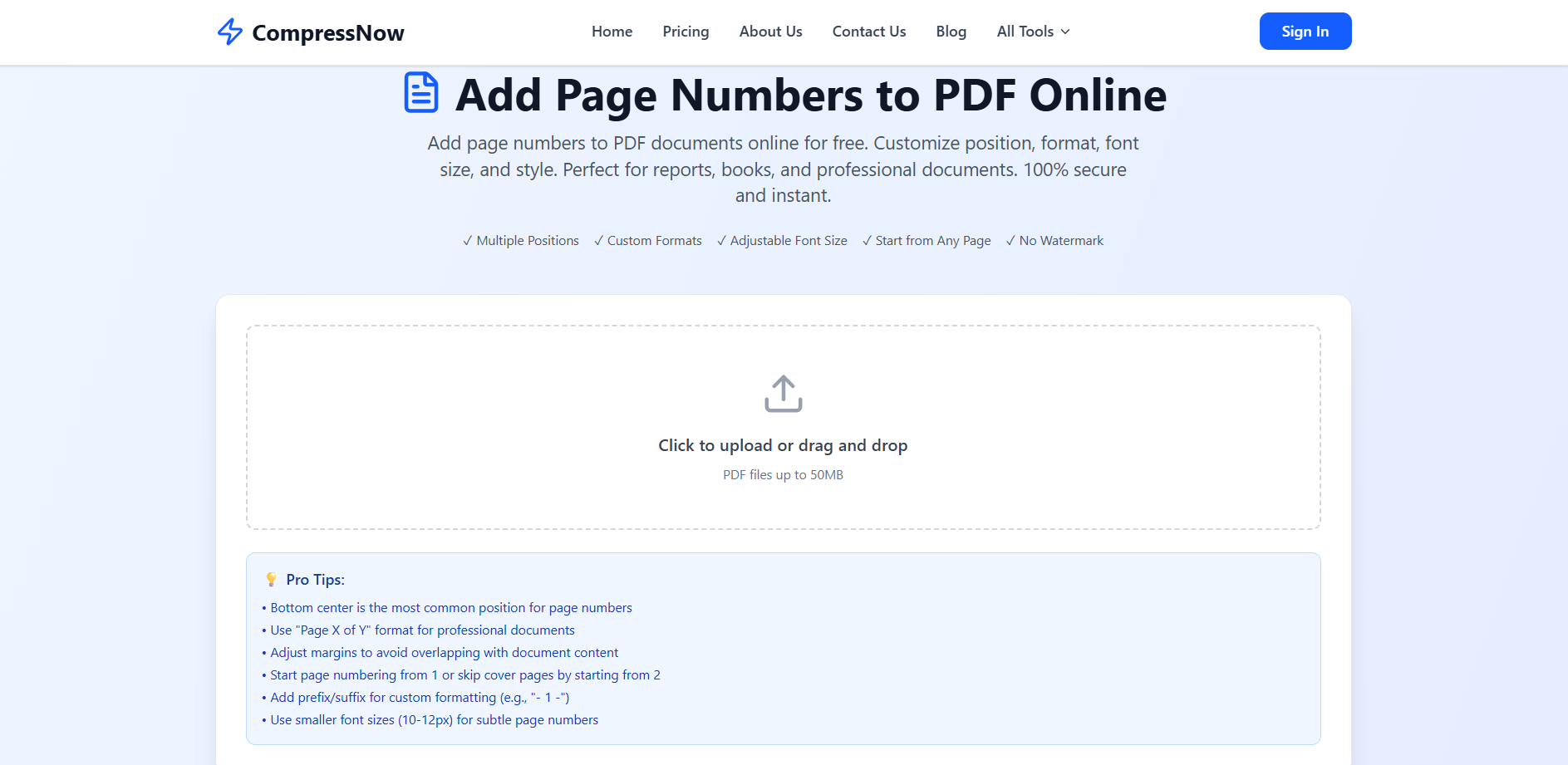
For many users, installing heavy software is not an option. This is where free PDF tools become invaluable. One of the most efficient ways to handle this task is through a browser-based PDF editor. If you are looking for a seamless experience, Compressnow.in offers a dedicated tool designed for speed and security.
When you navigate to the site, you will find an intuitive interface designed to manage PDF files without a steep learning curve. The process is straightforward:
Upload Your PDF: You can click the upload area or simply drag and drop your file (up to 50MB).
Choose Position: Unlike rigid software, this free PDF tool allows you to select exactly where the numbers appear—top or bottom, and left, center, or right.
As seen in the screenshot above, the tool provides “Pro Tips” to help you achieve the best results. For instance, bottom center is the most common position for page numbers, and using a smaller font size (10-12px) ensures the numbers remain subtle and don’t distract from the main content. This level of customization makes Compressnow.in a top-tier choice for those wondering how to add page numbers to a pdf quickly.
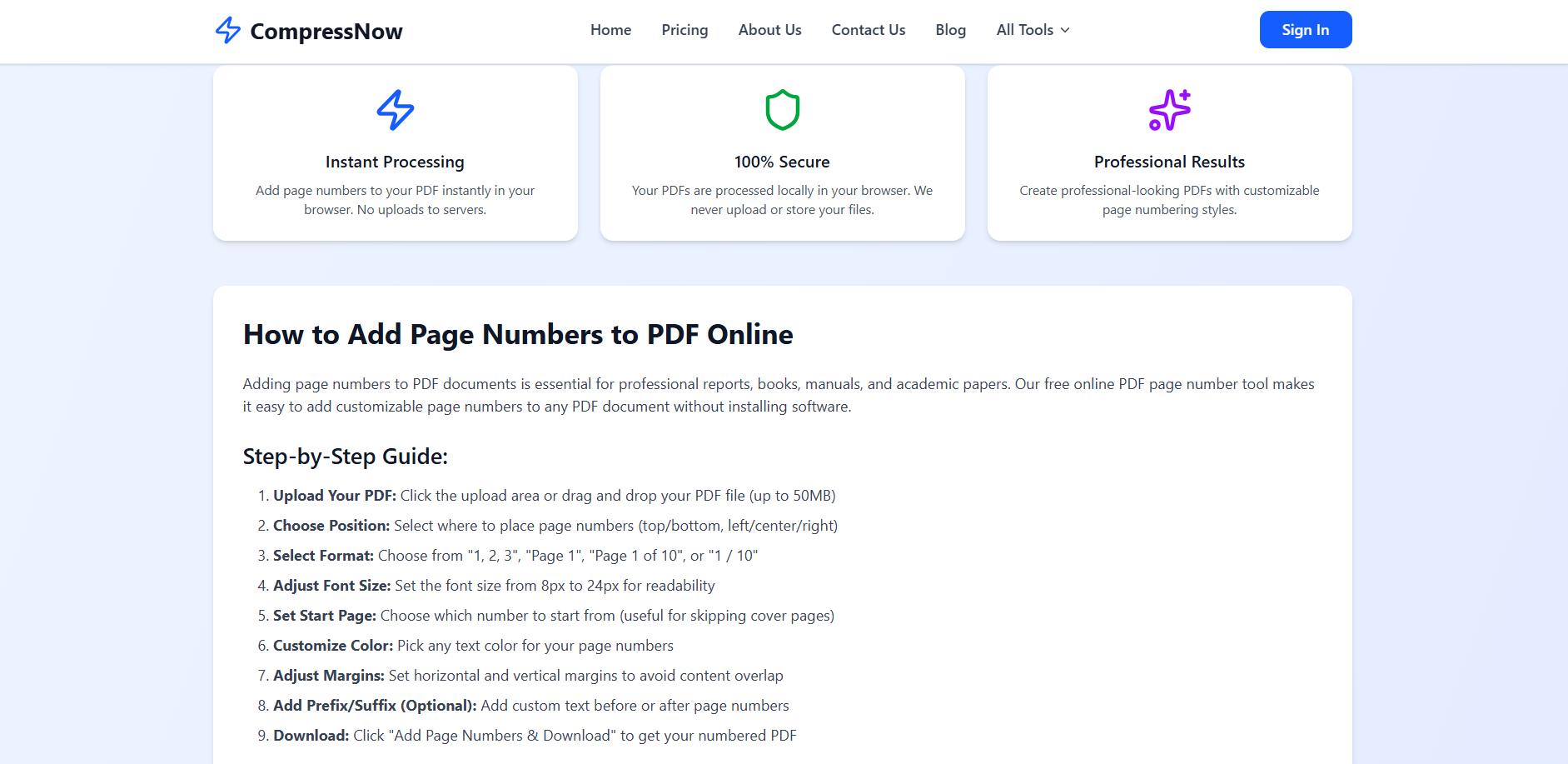
To ensure your document looks its best, follow these detailed steps when using an online PDF editor.
Select Format: You aren’t limited to just “1, 2, 3.” You can choose “Page 1,” “Page 1 of 10,” or even “/ 10.”
Adjust Font Size: Depending on your document formatting, you might need the numbers to be large or small. Usually, 8px to 24px is the standard range.
Set Start Page: This is a crucial feature. If your document has a cover page, you likely want to start numbering from page 2.
Customize Color: Match the font color to your brand or document theme.
Adjust Margins: This prevents the numbers from overlapping with your text or images.
The “Instant Processing” feature on Compressnow.in ensures that the numbers are added locally in your browser. This means your sensitive professional documents are never uploaded to a server, providing 100% security—a major concern when people search for how to add page numbers to a pdf.
Desktop Solutions: How to Add Page Numbers to a PDF using Adobe Acrobat
While online tools are convenient, power users often turn to Adobe Acrobat. This is the industry standard for PDF organization. Within Acrobat, you can insert page numbers by navigating to the “Edit PDF” toolset.
From the “Header & Footer” menu, you can select “Add.” This opens a dialog box where you can precisely control the appearance. Acrobat is particularly useful for Bates numbering, which is a specialized form of numbering used in legal and medical records to create a unique audit trail. If you are handling thousands of pages, learning how to add page numbers to a pdf via Acrobat’s batch processing feature is a life-saver.
However, keep in mind that Acrobat requires a paid subscription. For those who only need to manage PDF files occasionally, the cost might not be justified when free PDF tools like Compressnow.in provide similar professional results for free.
The Mobile Workflow: How to Add Page Numbers to a PDF on the Go
In today’s fast-paced environment, you might not always be at your desk. Knowing how to add page numbers to a pdf from a smartphone or tablet is a game-changer for commuters and field workers.
Mobile browsers have become incredibly powerful, allowing you to use a PDF editor directly from your phone. Whether you are on iOS or Android, you can simply visit a free PDF tool site, upload your file from your cloud storage (like Google Drive or iCloud), and apply the numbering. This flexibility ensures that PDF organization never has to wait until you are back in the office.
The Mac Way: How to Add Page Numbers to a PDF via Preview
Mac users have a built-in PDF editor called Preview. While it is excellent for viewing, it is surprisingly limited when it comes to the specific task of how to add page numbers to a pdf. You can manually insert page numbers using the text tool, but this is tedious for long documents.
To do this:
Open your PDF in Preview.
Show the Markup Toolbar.
Click the Text icon and type the number.
Drag it to the footer.
Repeat for every page.
Clearly, this is not the most efficient way to manage PDF files. If you have more than five pages, it is much faster to use an online tool or a dedicated Adobe Acrobat license to automate the page headers and footers.
Microsoft Word Hack: How to Add Page Numbers to a PDF without Specialized Software

If you have the original source file in Word, the best way to determine how to add page numbers to a pdf is to do it before you export.
Go to the “Insert” tab in Word.
Select “Page Number.”
Choose your preferred document formatting.
Save the file as a PDF.
If you only have the PDF and no original Word file, you can attempt to open the PDF directly in Word. Word will convert it into an editable document. From there, you can insert page numbers using the standard Word tools. Note that complex layouts might break during this conversion, which is why a dedicated PDF editor is usually preferred for PDF organization.
Real-Life Examples: When You Need to Know How to Add Page Numbers to a PDF
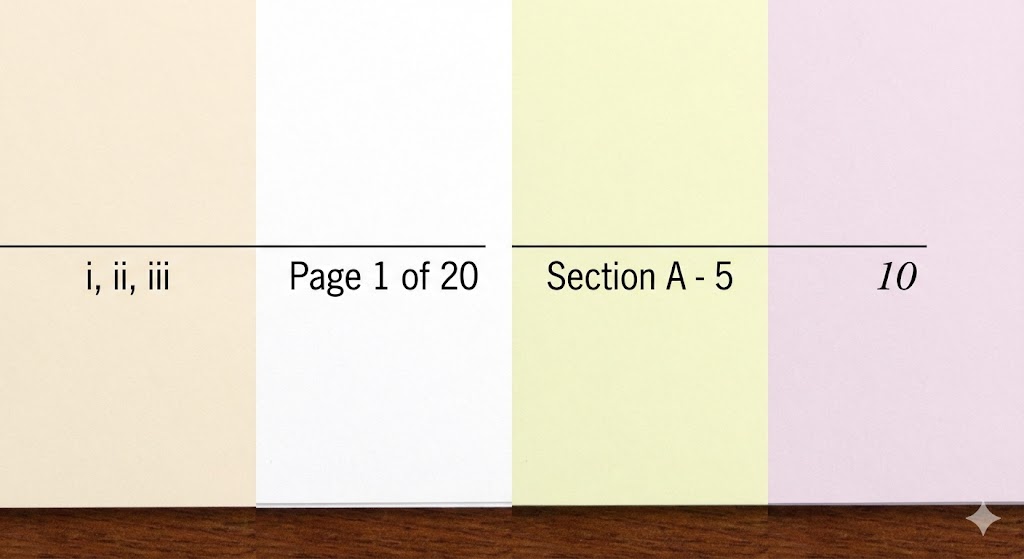
Case 1: The Academic Thesis A graduate student is ready to submit their 200-page dissertation. University guidelines require that the preliminary pages (Table of Contents, Abstract) use Roman numerals (i, ii, iii), while the main body uses Arabic numerals (1, 2, 3). Learning how to add page numbers to a pdf with section breaks is vital here to ensure the document formatting meets graduation requirements.
Case 2: The Legal Discovery In a law firm, a paralegal must prepare 5,000 pages of evidence for a trial. They use Bates numbering to ensure every page is uniquely labeled (e.g., CASE-0001). Knowing how to add page numbers to a pdf using automated tools prevents manual errors that could jeopardize a court case. To learn more about the history and technical standards of this process, you can read about Bates Numbering.
Case 3: The Small Business Proposal A freelance designer is sending a portfolio to a high-end client. To look professional, they use Compressnow.in to add sleek, minimalist page numbers in a font that matches their brand. This simple step in PDF organization makes the proposal much easier for the client to navigate during a review call.
Troubleshooting Tips: How to Add Page Numbers to a PDF Successfully
Sometimes, things don’t go as planned. Here are a few common issues and how to fix them:
Overlapping Text: If your document has very small margins, the numbers might sit on top of your text. Always use a tool that allows you to “Adjust Margins” so the page headers and footers have their own space.
File Size Limits: Some free PDF tools have strict limits. Compressnow.in allows up to 50MB, which covers most professional documents. If your file is larger, you may need to compress it first.
Font Embedding: Ensure that the font you choose for your numbers is standard (like Arial or Times New Roman). If you use a rare font and don’t embed it, the numbers might appear as weird symbols on other people’s computers. This is a key part of stable document formatting.
Advanced Document Formatting: Beyond Simple Numbers
When you master how to add page numbers to a pdf, you might want to explore more advanced PDF organization techniques. For instance, adding a “Prefix” or “Suffix” can add context. Instead of just “5,” you could have “Section A – Page 5.” This is particularly useful for technical manuals.
Furthermore, consider the “Start from Page X” feature. Many professional documents have a cover and a table of contents that shouldn’t be numbered. By starting the numbering from page 3, you maintain a high standard of document formatting.
Comparison: Online vs. Offline Tools for Managing PDF Files
| Feature | Compressnow.in (Online) | Adobe Acrobat (Desktop) |
| Cost | Free | Paid Subscription |
| Installation | None (Browser-based) | Required |
| Speed | Instant | Medium (Software Load) |
| Bates Numbering | Basic | Advanced |
| Security | Local browser processing | Local file system |
For 90% of users, the question of how to add page numbers to a pdf is best answered by a free PDF tool. It saves time, money, and computer storage space while providing professional results.
Security and Privacy: Is Your Data Safe?
When people search for how to add page numbers to a pdf, a primary concern is the safety of their information. Many online platforms require you to upload your files to their servers, which can be a risk for sensitive professional documents.
This is why Compressnow.in stands out. By using local browser processing, the files never leave your machine. This high level of security ensures that your PDF organization remains private. Whether you are dealing with financial statements or personal IDs, choosing a free PDF tool that respects data privacy is non-negotiable.
Final Thoughts on How to Add Page Numbers to a PDF
Mastering how to add page numbers to a pdf is a small but powerful way to improve your digital workflow. Whether you use the robust features of Adobe Acrobat or the quick, accessible interface of Compressnow.in, the goal is the same: to create professional documents that are easy to navigate.
Remember that PDF organization isn’t just about aesthetics; it’s about accessibility and efficiency. By using the right free PDF tools and following standard document formatting practices, you ensure that your work is always taken seriously. Next time you are tasked with preparing a report, don’t let the lack of numbering be a hurdle. Simply follow this guide on how to add page numbers to a pdf, and you’ll have a perfectly formatted document in seconds.
Whether you are dealing with Bates numbering for a court case or simple page headers and footers for a school project, the ability to insert page numbers effectively is a skill you will use for a lifetime. With tools that offer instant processing and professional results, there is no reason to settle for unorganized files. Explore how to add page numbers to a pdf today and see the difference it makes in your professional life.
How to Add Page Numbers to a PDF
Usually, no. You must first unlock the PDF using a PDF editor before you can modify the page headers and footers.
Will adding page numbers increase my file size?
The increase is negligible. Adding simple text numbers won’t affect your ability to manage PDF files or send them via email.
Is it safe to use online tools for confidential documents?
It depends on the tool. Compressnow.in is a great choice because it processes files locally in your browser, meaning your data isn’t being stored on a third-party server.
Can I use different numbering styles in the same PDF (e.g., Roman and Arabic)?
Yes, you can. This is a common requirement for academic papers and legal documents where the “Front Matter” (Table of Contents, Preface) uses Roman numerals (i, ii, iii) and the main body uses Arabic numerals (1, 2, 3).
To achieve this using a PDF editor like Compressnow.in or Adobe Acrobat, you should treat the sections separately. In Adobe, you can use the “Page Labels” feature to assign different styles to specific page ranges. If you are using free PDF tools, the easiest way is to number the sections individually before merging them, or simply use the “Page Range” option to apply specific formatting to the first few pages and a different style to the rest. This ensures your document formatting remains consistent and professional.
Need to Compress or Convert Files?
Try CompressNow.in - Free, Fast & Secure file compression and conversion tools!

Author Bio – Tanishk Singh
Tanishk Singh is a Digital Marketing Strategist, SEO Specialist, and Web Technology Expert with over 4+ years of hands-on experience in building, ranking, and monetizing high-performance web platforms.
He has helped scale organic traffic for multiple education and SaaS websites, including increasing Shoolini Online’s SEO traffic from 800 to 20,000+ users in just 2.5 months using advanced content architecture, AI-driven SEO, and Google SGE optimization.
Tanishk specializes in creating AI-powered web tools, performance-optimized platforms, and SEO-focused websites that rank, convert, and generate consistent revenue.