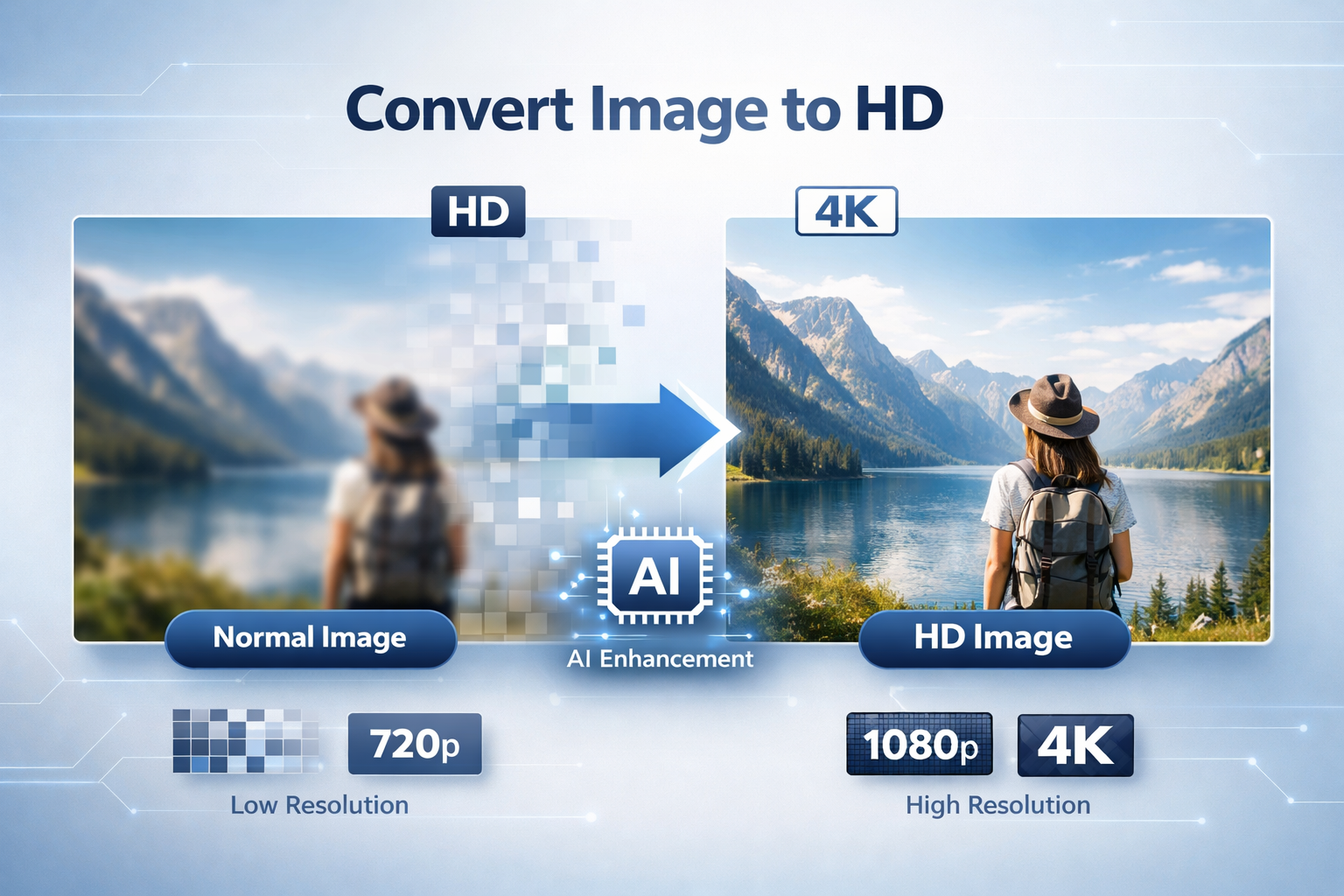

How to convert image to HD is a common question in 2025 as image quality standards continue to rise across websites, apps, and social media platforms. Users now expect images to appear sharp and clear on every screen size, from mobile phones to large monitors. If an image looks blurry or low quality, it can reduce trust and engagement instantly.
Converting a normal image to HD helps improve clarity, sharpness, and overall visual appeal without needing to retake the photo. With modern tools and AI upscaling, even older or low resolution images can be enhanced to meet today’s quality expectations.
Why Image Quality Matters in 2025
Image quality matters more than ever because most devices now use high resolution displays. Low quality images stand out in a negative way and can make content feel outdated. HD images create a better first impression and help keep users engaged.
High quality images also support better performance and SEO. Clear visuals improve user experience, increase time on page, and make content more shareable across digital platforms.
Difference Between Normal Image and HD Image
A normal image usually has low resolution and fewer pixels, which can cause blur or pixelation when viewed on larger screens. These images may load fast but often lack clarity and detail.
An HD image has higher resolution and more pixels, resulting in sharper edges and clearer details. When you convert a normal image to HD, the image becomes more suitable for modern screens and professional use.
What Is an HD Image

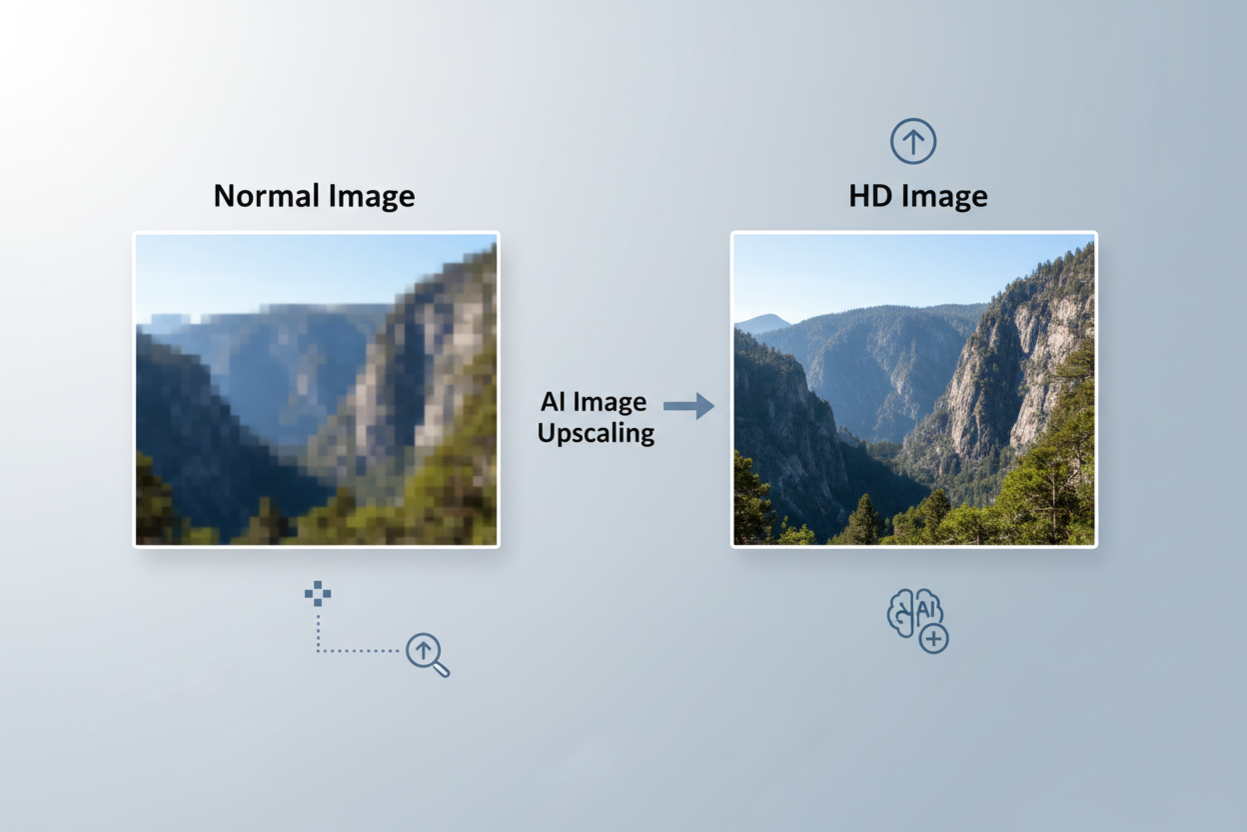
An HD image is an image that has a higher resolution and looks clear and sharp on modern screens. HD stands for high definition, which simply means the image contains more visual detail. When you view an HD image, edges look smooth, text appears readable, and the overall picture feels clean and professional.
HD images are designed to look good on large screens like laptops, tablets, and high resolution mobile displays. Unlike low quality images, they do not become blurry when zoomed in slightly or viewed on bigger devices.
HD Image Resolution Explained
Image resolution refers to the number of pixels in an image. Pixels are tiny dots that come together to form a picture. The more pixels an image has, the better the quality and clarity.
A normal image may have a low resolution like 640 × 480 pixels, which can look fine on small screens but blurry on larger ones. An HD image usually starts at 1280 × 720 pixels or higher. Full HD images are commonly 1920 × 1080 pixels. These higher resolutions allow images to stay sharp and detailed across all devices.
When You Should Convert a Normal Image to HD
You should convert a normal image to HD when it looks blurry, pixelated, or outdated on modern screens. This often happens with old photos, screenshots, or images downloaded from the internet in low quality.
Converting images to HD is also useful when uploading photos to websites, blogs, social media platforms, or online stores. HD images improve visual appeal, build trust, and help your content look more professional without much effort.
How to Convert Normal Image to HD Online
How to convert normal image to HD online is one of the easiest and fastest methods, especially if you do not want to install any software. Online image upscaling tools work directly in your browser and use smart technology to improve image clarity and resolution.
Most of these tools are beginner friendly and require only a few clicks. You upload your image, choose the HD or upscale option, and download the improved version. This makes online tools perfect for quick edits, social media images, and website visuals.
Free Online Image Upscaling Tools
There are many free online tools that help convert a normal image to HD without much effort. Popular options include AI based image upscalers, online photo enhancers, and basic resolution boosters. These tools analyze your image and add extra details to make it look sharper.
Free tools are ideal for small projects and casual use. They usually allow limited upscaling, but the results are good enough for blogs, presentations, and social media posts. For best results, always upload the highest quality version of your original image.
Step by Step Process to Convert Image to HD
First, choose a reliable online image upscaling tool and open it in your browser. Upload the normal image you want to convert to HD.
Next, select the HD or upscale option provided by the tool. Some tools also let you adjust sharpness or noise reduction. After processing, preview the image and download the HD version to your device.
This simple process helps you convert images to HD quickly without technical skills.
How to Convert Image to HD on Mobile
How to convert image to HD on mobile is very useful because most photos today are edited and shared directly from smartphones. You do not need a computer or advanced software to improve image quality. With the right apps and built-in tools, you can easily enhance a normal image and make it look HD.
Mobile apps are simple to use and designed for quick results. They work well for social media images, profile photos, and everyday editing needs.
Convert Normal Image to HD on Android
On Android devices, you can convert a normal image to HD using free image upscaling or photo enhancement apps from the Play Store. Many apps use AI to improve sharpness and increase resolution automatically.
To get started, install an image upscaler app and open your photo inside it. Choose the HD or enhance option and let the app process the image. Once done, save the improved HD image to your gallery. For better results, avoid over sharpening and keep the edits natural.
Convert Image to HD on iPhone
iPhone users can convert images to HD using photo editing apps available on the App Store. Some apps offer AI powered upscaling, while others allow you to manually adjust clarity and sharpness.
Open the app, upload your image, and select the HD or enhance feature. After processing, review the image and save it in high resolution. This method is ideal for improving old photos, screenshots, or images meant for sharing online.
How to Convert Image to HD Using AI Tools
How to convert image to HD using AI tools is one of the most effective methods available today. AI powered tools are designed to intelligently improve image quality instead of simply stretching the image size. They analyze the photo and rebuild missing details, making the final result look more natural and sharp.
These tools are especially helpful for old photos, low resolution images, and pictures taken in poor lighting. With just a few clicks, AI tools can turn a normal image into an HD image without much manual effort.
How AI Improves Image Quality
AI improves image quality by studying patterns, textures, and edges in an image. Instead of guessing, the AI predicts how missing details should look and fills them in smoothly. This reduces blur and makes the image clearer.
AI also helps remove noise, enhance sharpness, and balance colors. Because of this smart processing, the image looks more detailed and realistic compared to traditional resizing methods.
Best AI Tools to Convert Normal Image to HD
There are many AI tools available online and as apps that can convert a normal image to HD. Some popular options include AI image upscalers, photo enhancers, and smart resolution boosters. These tools are easy to use and work well for both beginners and professionals.
Most AI tools allow you to upload an image, choose the upscale level, and download the HD result. Free versions are good for basic use, while paid versions offer higher resolution and batch processing.
Best Settings to Convert Image to HD Without Losing Quality
Best settings to convert image to HD without losing quality are important because incorrect adjustments can make an image look unnatural. Simply increasing resolution is not enough. You need the right balance of resolution, sharpness, and clarity to keep the image looking clean and realistic.
Using smart settings helps preserve details and prevents common issues like blur, noise, or over sharpening. Always aim for natural looking improvements rather than extreme changes.
Choosing the Right Resolution
Choosing the right resolution depends on where the image will be used. For websites and blogs, HD resolution like 1280 × 720 pixels or 1920 × 1080 pixels works well. Social media platforms often compress images, so starting with a slightly higher resolution helps maintain quality.
Avoid increasing resolution too much at once. Upscaling an image beyond its original quality can reduce sharpness. It is best to upscale gradually and preview the results before saving the final image.
Avoiding Blur and Pixelation
Blur and pixelation usually happen when images are stretched without proper enhancement. To avoid this, use AI based tools that rebuild details instead of simple resizing.
Keep sharpening settings low and apply noise reduction only when needed. Always preview the image at full size before downloading. These small steps help ensure your converted HD image looks smooth, clear, and professional.
Common Mistakes When Converting Normal Image to HD
Common mistakes when converting normal image to HD can reduce image quality instead of improving it. Many people rush the process or use incorrect settings, which leads to unnatural looking results. Understanding these mistakes helps you get cleaner and more professional HD images.
Paying attention to small details during conversion makes a big difference in the final output.
Over Sharpening Images
Over sharpening is one of the most common mistakes. While sharpening can improve clarity, too much of it creates harsh edges and visible noise. The image may look rough or artificial instead of clean and HD.
Always apply sharpening lightly and preview the image at full size. If the image starts to look grainy or overly detailed, reduce the sharpening level for a more natural result.
Using Low Quality Upscaling Tools
Low quality upscaling tools simply stretch the image without adding real detail. This often causes blur, pixelation, and distorted edges. These tools may seem fast, but they usually deliver poor results.
For better quality, choose reliable AI based upscaling tools that intelligently enhance images. Using trusted tools ensures your converted HD image looks sharp, balanced, and suitable for modern screens.
Conclusion
Best way to convert image to HD depends on your needs, the device you are using, and the quality of the original image. In 2025, you no longer need professional software to get good results. Online tools, mobile apps, and AI powered upscalers make HD image conversion simple and accessible for everyone.
By choosing the right method, you can improve image clarity and make your visuals look modern and professional.
Quick Recap of Methods
You can convert a normal image to HD using online upscaling tools for quick and easy results. Mobile apps are ideal for editing images directly on Android and iPhone. AI tools provide the best quality by intelligently enhancing details and reducing blur.
Each method works well when used correctly, and the right choice depends on how much control and quality you need.
Final Tips for HD Image Conversion
Always start with the highest quality image available. Avoid extreme sharpening and do not over upscale the resolution. Use AI based tools whenever possible and preview your image before saving.
Following these simple tips will help you convert images to HD without losing quality and ensure your images look clear, sharp, and professional across all devices.