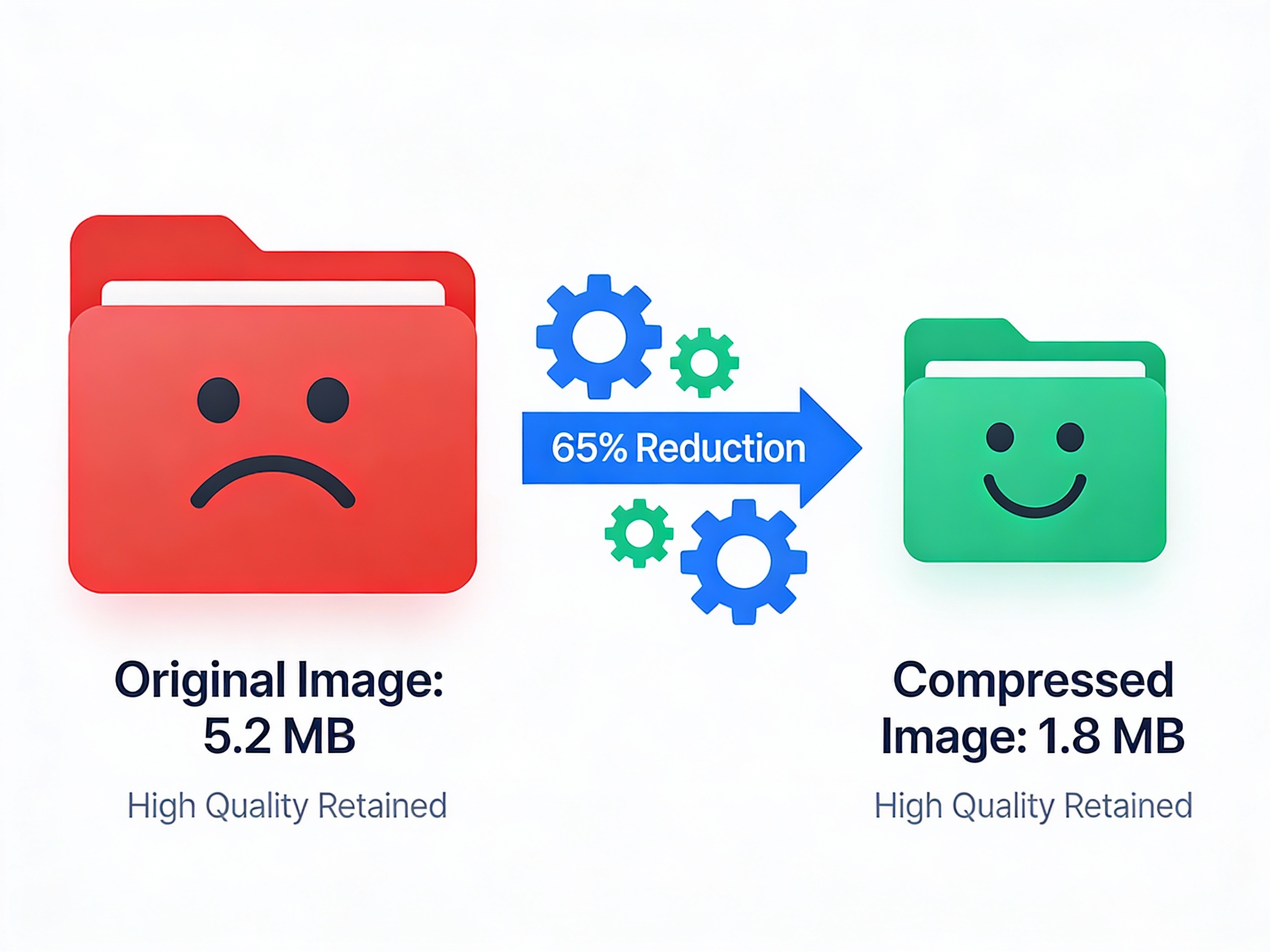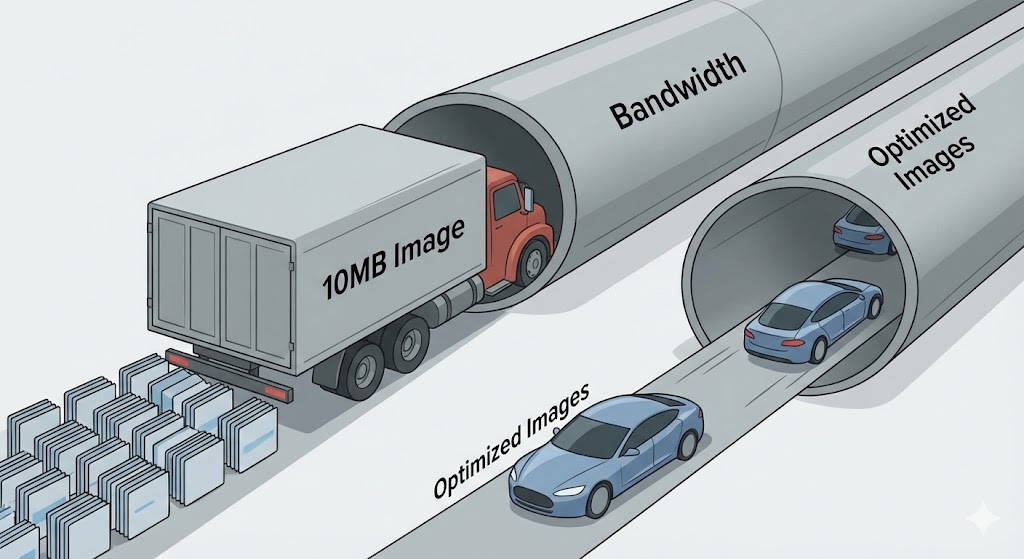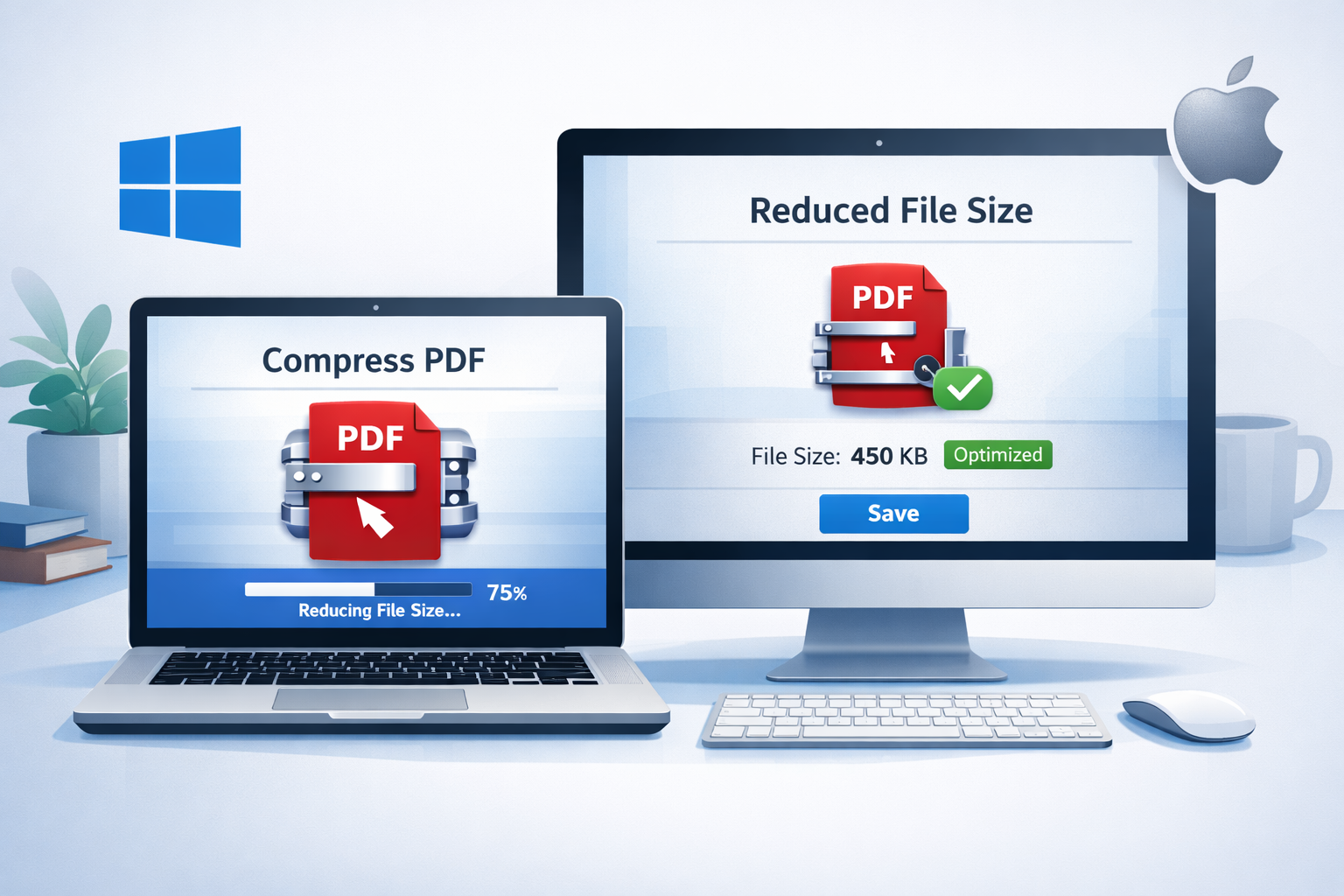

How to reduce size of PDF is a common question for anyone who deals with documents regularly. Large PDF files are difficult to share, slow to upload, take longer to download, and consume more storage space. By reducing the PDF file size, you make your document lighter, easier to send, and more convenient to open on any device without lag. Compressing a PDF helps maintain readability while ensuring better performance, faster sharing, and smoother accessibility.
What Does PDF Compression Mean?
PDF compression means decreasing the file size of a PDF without changing its actual content. This is usually done by optimizing images, removing unnecessary elements, and restructuring the file to make it lighter. There are two main types of compression:
Lossless Compression – Reduces file size without affecting quality.
Lossy Compression – Reduces more size but may slightly lower image quality.
The aim is to keep the document clear and readable while making it smaller.
Benefits of Reducing PDF Size (Storage, Sharing, Uploading)
Reducing PDF size offers several benefits:
Easy Sharing – Send PDFs through email, WhatsApp, and other platforms without limitations.
Fast Uploads & Downloads – Perfect for job portals, government forms, and online submissions.
Saves Storage Space – Helps you manage more files without filling your device.
Better Performance – Smaller PDFs open faster, especially on mobile devices and slower networks.
When You Should Compress a PDF
You should compress a PDF when:
The file is too large to email or upload
Websites or portals have file size limits
You want faster sharing and downloading
You need to save storage space
The PDF contains high-resolution images making it heavy
Whenever your PDF feels slow, hard to upload, or difficult to share, it’s the right time to reduce its size.
Understanding PDF Size: What Makes a PDF Heavy?
Before learning how to reduce size of PDF, it’s important to understand what actually makes a PDF file large. Many PDFs become heavy because they contain high-resolution images, complex graphics, embedded fonts, and unnecessary elements that increase file size. These factors slow down opening speed, make sharing difficult, and cause upload failures on many websites.
How Images Increase PDF Size
Images are the biggest reason behind large PDF files. When a PDF contains high-resolution photos, scanned pages, or uncompressed images, the file size increases quickly.
Photos taken from cameras or phones are usually in high resolution
Scanned documents are often saved as image-based pages
Uncompressed images consume more storage
If a PDF has many images, it becomes heavy. Compressing images, reducing resolution, or converting them to lighter formats can significantly reduce PDF size.
Role of Fonts and Graphics
Fonts and graphics also play a major role in increasing PDF size. When a PDF uses multiple custom fonts, each font style gets embedded inside the file, which makes it larger. Similarly, detailed graphics, vector shapes, logos, and design elements add extra weight.
Multiple font styles = more file size
Decorative and custom fonts add extra data
Complex graphics require more storage
Using fewer fonts and optimizing graphics helps make the PDF lighter.
Embedded Elements and Unnecessary Data
Many PDFs contain hidden or unnecessary elements that increase size without adding value. These include:
Embedded media (audio or video)
Extra layers in design files
Comments, annotations, and form fields
Metadata and unused objects
Such elements increase file size and slow performance. Removing them or flattening the PDF helps reduce size significantly.
How to Compress PDF Online (Free & Easy Methods)
If you are looking for the easiest way for how to reduce size of PDF, online PDF compressors are the best solution. You don’t need to install any software; just upload your PDF, compress it, and download the smaller file. These tools are quick, user-friendly, and work on both mobile and computer.
Best Free Online PDF Compressors
Here are some of the most popular and reliable online tools to compress PDF for free:
Smallpdf – Simple, fast, and beginner-friendly
ILovePDF – Offers multiple compression levels
PDF Compressor – Good for bulk compression
Adobe Acrobat Online – Trusted and secure
HiPDF / PDFCandy – Easy to use with decent quality
These tools help you reduce PDF file size without affecting readability. Most of them also keep your files secure and delete them after a short time.
Step-by-Step Guide to Compress PDF Online
Follow these simple steps to compress a PDF online:
Open any online PDF compressor tool in your browser
Click on Upload PDF or Choose File
Select your PDF file from your device
Choose compression level (Basic / Medium / Strong) depending on your need
Click Compress or Reduce Size
Wait for the process to complete
Download your compressed PDF file
Within a few seconds, your PDF size will be reduced and ready to share or upload anywhere.
Pros & Cons of Online Compression Tools
✅ Pros:
No software installation required
Works on mobile, PC, and tablets
Very quick and easy to use
Most tools are completely free
Supports multiple file formats
❌ Cons:
Requires internet connection
Some tools may have file size limits
Privacy concerns if document is sensitive
Strong compression may reduce image quality
Online tools are best when you want fast and simple PDF compression. For confidential or professional documents, offline tools may be safer.
How to Reduce PDF Size on Windows & Mac
There are several built-in and software-based methods on Windows and Mac for how to reduce size of PDF without going online. These methods are safer for confidential documents because your files stay offline on your device.
Compress PDF Using Adobe Acrobat
Adobe Acrobat provides a direct Reduce File Size or Optimize PDF feature.
Steps:
Open your PDF in Adobe Acrobat
Click on File
Select Save As Other
Click Reduced Size PDF or Optimize PDF
Save your compressed document
Adobe also allows advanced optimization such as image downsampling and font cleanup.
Reduce PDF Size Using Preview (Mac Users)
Mac users can compress PDFs easily without extra apps.
Steps:
Open PDF with Preview
Click File
Select Export
Under Quartz Filter, choose Reduce File Size
Save the new PDF
This method is fast, but in some cases, image quality may slightly decrease.
Other Desktop Software to Compress PDF
You can also use third-party desktop tools like:
Foxit PDF Editor
Nitro PDF
PDFsam
Wondershare PDFelement
These tools offer batch compression, offline safety, and more control over quality settings.
How to Reduce PDF Size on Mobile (Android & iPhone)
You can also compress PDF files directly on smartphones, which is helpful for students and professionals working on the go.
Compress PDF on Android Using Apps
Popular Android apps include:
Adobe Acrobat Reader
iLovePDF App
Smallpdf App
WPS Office
General steps:
Install any PDF compressor app
Open the app and upload your PDF
Select Compress or Reduce Size
Download/save the compressed file
Reduce PDF Size on iPhone Without Losing Quality
On iPhone, you can use:
Apple Files app (share as reduced PDF)
Adobe Acrobat
PDF Expert
Online tools via Safari
Some apps let you choose low, medium, or high quality compression to control clarity.
Online Mobile PDF Compressors
If you don’t want apps, use browser tools like:
Smallpdf mobile website
iLovePDF mobile website
Adobe online compressor
Just upload → compress → download. Works on both Android & iPhone.
Reduce PDF Size Without Losing Quality
Sometimes you want a smaller file without blurry text or images. Here are safe methods.
Use Correct Image Compression Settings
Images increase PDF size the most. You can:
Reduce image resolution (e.g., from 600 DPI to 150/300 DPI)
Change image format to JPG from PNG when suitable
Compress scanned pages
This keeps text sharp while shrinking the file.
Remove Unnecessary Elements
Delete extra things like:
blank pages
annotations
comments
form fields
hidden layers
Removing these significantly reduces file size.
Save PDF with Optimized Settings
When exporting a PDF:
choose Optimize / Reduced Size PDF
avoid Print Quality unless necessary
enable fast web view when available
This keeps quality readable while size becomes smaller.
Advanced Methods: Optimizing Images, Fonts & Elements
These methods are great for professionals who handle heavy PDFs.
Convert Images Inside PDF to Lower Resolution
You can downsample images inside PDF:
from 600 DPI to 150 DPI (for web use)
from CMYK to RGB (for digital viewing)
This drastically reduces size but keeps visual clarity good.
Subset or Remove Fonts
When you embed too many fonts, PDF size increases.
Use fewer fonts
Subset fonts (embed only used characters)
Remove unused fonts
Most PDF editors support font subsetting options.
Flatten PDF Layers to Reduce Size
Some PDFs contain layers (from design software or scanners).
Flattening removes:
form fields
layers
interactive elements
This reduces size and improves compatibility.
Conclusion
Learning how to reduce size of PDF is extremely useful whether you are a student, professional, or someone who regularly shares documents. A smaller PDF is easier to upload, quicker to share, takes less storage space, and opens smoothly on any device. You can reduce PDF size using online tools, desktop software, or mobile apps depending on your need.
Just remember to balance file size and quality. For sensitive documents, prefer offline tools to ensure privacy. For everyday documents, online compressors work perfectly. By optimizing images, removing unnecessary elements, and using the right compression settings, you can keep your PDF lightweight without losing important quality.
In simple words, compressing a PDF makes your document more efficient, professional, and user-friendly.
Need to Compress or Convert Files?
Try CompressNow.in - Free, Fast & Secure file compression and conversion tools!

Author Bio – Tanishk Singh
Tanishk Singh is a Digital Marketing Strategist, SEO Specialist, and Web Technology Expert with over 4+ years of hands-on experience in building, ranking, and monetizing high-performance web platforms.
He has helped scale organic traffic for multiple education and SaaS websites, including increasing Shoolini Online’s SEO traffic from 800 to 20,000+ users in just 2.5 months using advanced content architecture, AI-driven SEO, and Google SGE optimization.
Tanishk specializes in creating AI-powered web tools, performance-optimized platforms, and SEO-focused websites that rank, convert, and generate consistent revenue.