
Icons are everywhere on your computer. The small image you see on apps, folders, and shortcuts is usually stored in a file called an ICO file. The ICO format is specially made for Windows so that every app and shortcut can have a clear and neat icon. What makes it interesting is that one ICO file can hold different icon sizes, so the image looks perfect whether it is tiny or large.
What Is an ICO File?
An ICO file is an image file that stores icons for Windows. You see it when you look at your desktop icons, taskbar icons, or application icons. Unlike a normal picture, an ICO file can store multiple versions of the same image in different sizes and resolutions. This helps Windows display the best quality icon depending on where it is shown. ICO files also support transparency, which means icons can have clean shapes instead of square backgrounds.
Brief History of ICO Format
The ICO format was introduced by Microsoft with early versions of Windows to manage system and application icons. As Windows evolved, the format also improved. Older ICO files supported only small and low quality images. Later versions of Windows allowed higher resolution icons, better colors, and even more image sizes inside a single file. Today, ICO remains the standard format for Windows icons, website favicons, and many desktop applications.
Where Are ICO Files Used?
ICO files are mainly used anywhere an icon is needed in Windows or on websites. They help give apps, folders, and web pages a visual identity so users can recognize them instantly. Because ICO files support different sizes in one single file, they work smoothly in different places without losing quality.
Desktop Icons
ICO files are most commonly used for desktop icons. Every shortcut, folder, and software icon you see on your desktop is usually an ICO file. Since your desktop can display icons in different sizes, the ICO format helps keep them sharp and clear whether they are small or large.
Application Icons
Software and apps also use ICO files for their program icons. When you install an application, the icon you see in the Start menu, taskbar, and title bar usually comes from an ICO file. Developers use ICO files so the app icon always looks professional, neat, and easy to recognize across the system.
Website Favicons
ICO files are also used on websites as favicons. This is the tiny icon you see in your browser tab, bookmark bar, or when you save a website shortcut. Even though many websites now use PNG or SVG favicons, ICO is still widely supported and works perfectly in most browsers.
Features of ICO Files
ICO files are designed to make icons look good in different places and sizes. That is why they come with some really useful features that normal image files do not always have. These features help icons stay clear, flexible, and visually appealing across Windows and even websites.
Multiple Image Sizes in One File
One of the coolest features of an ICO file is that it can store many versions of the same image in different sizes. For example, a single ICO file can include 16×16, 32×32, 64×64, and 256×256 icons together.
Because of this, Windows can automatically pick the best size depending on where the icon is shown, whether it is a tiny icon in a menu or a larger one on the desktop. This keeps the icon sharp and clear everywhere.
Transparency Support
ICO files also support transparency. This means icons do not need to be in a square box. Instead, they can have smooth edges, rounded corners, or unique shapes without any background block. Transparency helps icons blend well with light or dark themes and makes them look cleaner and more professional.
Color Depth and Resolution
ICO files support different color depths and resolutions, which helps icons look more detailed and high quality. Older icons used fewer colors and looked pixelated. Modern ICO files support millions of colors and higher resolutions, so icons appear smooth and visually appealing even on high-resolution screens.
ICO File Format Structure
The ICO file format is specially designed to store icons in a smart way. Instead of holding just one image, an ICO file can contain a collection of images inside it. Each of these images can have different sizes and resolutions. This helps Windows choose the right version of the icon depending on where it is being used. So even though it looks like a single file, it actually works like a small image bundle made just for icons.
How an ICO File Is Built
An ICO file is built using multiple image layers. Each layer represents the same icon but in different sizes and quality levels. When Windows needs to display an icon, it simply picks the layer that fits best.
Inside the file, there is a small header that tells the system how many icons are inside and what their sizes are. After that, the actual icon images are stored. Because of this structure, ICO files stay flexible and work smoothly across different parts of the system.
Supported Image Sizes
ICO files support a wide range of image sizes. Some of the most common sizes include:
• 16×16
• 32×32
• 48×48
• 64×64
• 128×128
• 256×256
Small sizes are usually used for toolbars or menus, while larger sizes are used on desktops or high-resolution screens. Thanks to this size variety, icons remain clear, sharp, and visually appealing no matter where they appear.
How to Open ICO Files
Opening an ICO file is quite simple. Since it is mainly a Windows format, Windows supports it natively, but you can still open it on Mac and mobile devices using suitable apps. Most image viewers and graphic tools today also support ICO files, so you can easily view or edit them when needed.
On Windows
Windows is the home of ICO files, so opening them is super easy.
You can simply double click an ICO file and it will open in the default Photos or Image Viewer. You can also right click and open it with tools like Paint or any graphic editor. Many icon editor tools and design software also support ICO files, so viewing or editing them in Windows is smooth and straightforward.
On Mac
Mac does not natively support ICO files as smoothly as Windows, but you can still open them using third party tools. Apps like Preview sometimes work, but in many cases you may need software like GIMP or an online image viewer. You can also convert the ICO file to PNG or JPG using online converters and then open it easily on your Mac.
On Mobile
On mobile devices, ICO files are not supported by default. However, you can still open them using special apps or online tools. On Android, you can use image viewer apps from the Play Store that support ICO format. On iPhone, you can use online converters or third party image viewer apps. Once converted to PNG or JPG, the file opens easily on any mobile device.
How to Create ICO Files
Creating an ICO file is easier than many people think. Whether you are a designer, developer, or just someone who wants a custom desktop icon, there are different ways to create an ICO file. You can make one online, use professional design software, or even use built-in Windows tools. The goal is always the same: turn your image into a clean, high-quality icon.
Using Online Tools
The easiest way to create an ICO file is by using online converters.
You simply upload an image like PNG or JPG, choose the icon size you need, and then download the ICO file. These tools are quick, free, and require no installation. They are perfect for beginners or anyone who just needs a simple icon without complicated editing.
Online tools are great because:
They are beginner friendly
Work on any device
Support multiple sizes
Just make sure you upload a clear image so your icon looks sharp.
Using Photoshop / Illustrator
If you want more control and a professional-looking icon, you can use tools like Photoshop or Illustrator. Here you can design your icon from scratch, adjust colors, add effects, and create different sizes. With plugins or built-in export options, you can save your design as an ICO file.
This method is ideal for:
App developers
Graphic designers
Anyone who wants a polished icon
It gives you the best quality and flexibility, but it requires some design knowledge.
Using Windows Tools
You can also create ICO files using Windows tools. Simple programs like Microsoft Paint can save images that can later be converted into ICO format. There are also special Windows applications called “icon editors” that are made specifically for creating and editing ICO files. These tools let you pick sizes, draw icons manually, and save them directly as ICO.
This method is useful if you:
Want a quick offline solution
Prefer simple software
Need basic icons
How to Convert Images to ICO
Overview of image formats: TIFF vs JPG
When it comes to images, you’ve probably seen different file types like TIFF and JPG. But what exactly do they mean? TIFF, which stands for Tagged Image File Format, is known for keeping every bit of image detail intact. Photographers and designers often use it when they want the highest quality possible. On the other hand, JPG, short for JPEG, is a smaller file format. It compresses images so they take up less space, which makes it perfect for sharing online or sending via email.
Why conversion between TIFF and JPG is important
Sometimes you’ll need to switch between these formats depending on what you want to do with your image. For example, if you need top-notch quality for printing, TIFF is great. But if you want to upload that same image to your website, JPG is a better choice because it loads faster. Learning how to convert TIFF to JPG helps you get the right balance between image quality and file size, ensuring your images are perfect for any use.
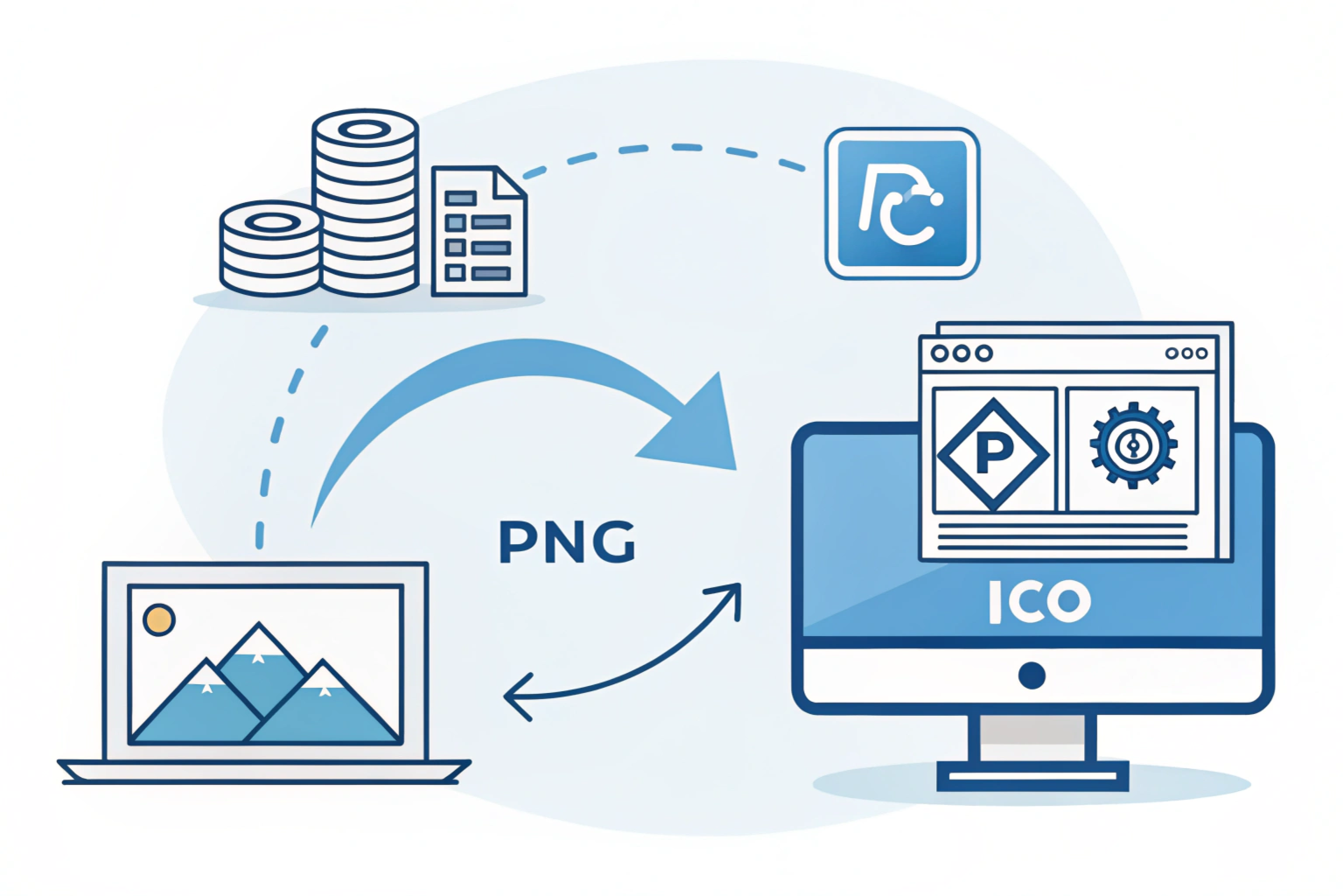
If you already have an image like PNG or JPG and want to turn it into an ICO file, the process is quite easy. Many tools let you convert images in just a few clicks. Whether you need it for a desktop icon, application logo, or website favicon, converting images to ICO helps you get the exact icon format you need.
PNG/JPG to ICO
Converting PNG or JPG to ICO is very simple. All you need to do is upload your image to a converter or open it in a graphic editor that supports ICO. Then you choose the size, save or export it as ICO, and you are done.
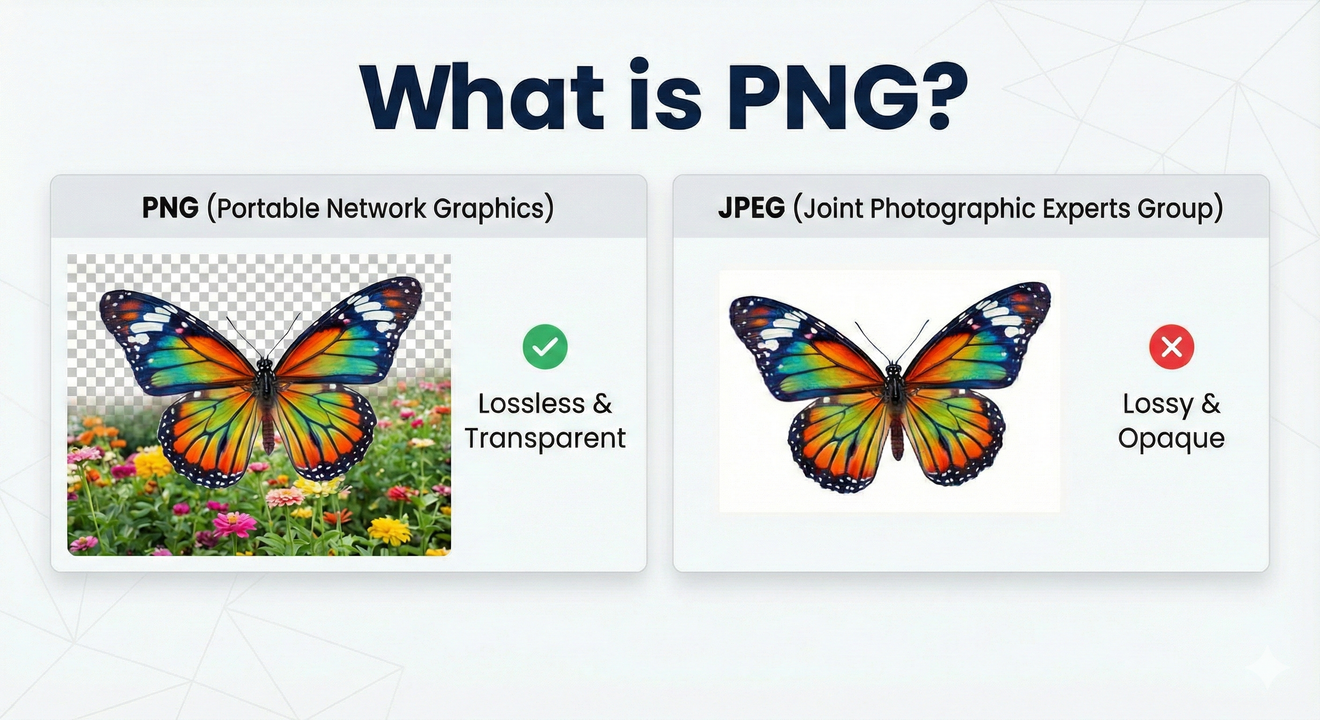
PNG is usually the best choice for icons because it supports transparency, which helps create cleaner and smoother icons. JPG also works, but it does not support transparency, so it may show a background instead of a clean shape.
When converting, it is always better to start with a high-quality image. This helps your icon look sharp even in larger sizes.
Recommended Tools
You have plenty of options when it comes to converting images to ICO. Here are some easy choices:
Online Converters
These are quick and simple. Just upload your image, select size, and download the ICO file. No software needed.
Graphic Software
Tools like Photoshop, GIMP, and Illustrator allow you to design and export directly as ICO. These are great for professional icons.
Icon Maker Software
There are also dedicated icon editing programs that let you create, edit, and convert icons. They are useful if you work with icons often.
All these tools make the conversion process smooth, beginner friendly, and reliable.
Advantages & Limitations of ICO Files
Like every file format, ICO files come with both strengths and weaknesses. They are great for icons and Windows usage, but they also have a few limitations compared to modern formats. Understanding both sides helps you decide when to use ICO and when another format may be better.
Benefits
ICO files offer several useful advantages:
Multiple sizes in one file
A single ICO file can store many icon sizes together. This helps Windows choose the perfect size automatically.Great for Windows
ICO is the native icon format for Windows. This makes it highly compatible with system icons, apps, shortcuts, and folders.Supports transparency
Icons can have smooth shapes, rounded edges, or custom designs without square backgrounds, making them look clean and modern.High flexibility
Since ICO files support different resolutions and color depths, they work well on both older and newer displays.
Overall, ICO files are reliable, flexible, and perfect for Windows environments.
Drawbacks
Even though ICO files are useful, they also have some limitations:
Mainly for Windows
ICO is not as widely used outside Windows. Other platforms prefer formats like PNG or SVG.Larger file size sometimes
Since one ICO file can store multiple images, it may become heavier than a single image file.Not ideal for modern web graphics
Many websites are now shifting to PNG and SVG because they are lighter and more scalable.Limited use case
ICO files are mainly for icons only, not for general image usage.
Despite these drawbacks, ICO files are still very important for Windows icons and system graphics.
Conclusion
ICO files play a very important role in how icons appear on Windows and even on websites. They are specially designed to handle different icon sizes, support transparency, and keep icons looking sharp in every place they are used. Whether it is a desktop icon, an application icon, or a website favicon, ICO files make sure everything looks neat and professional.
Even though newer formats like PNG and SVG are becoming popular, ICO files are still the standard choice for Windows icons because of their flexibility and strong compatibility. So if you ever need to create or use an icon, knowing about ICO files definitely helps.

Author Bio – Tanishk Singh
Tanishk Singh is a Digital Marketing Strategist, SEO Specialist, and Web Technology Expert with over 4+ years of hands-on experience in building, ranking, and monetizing high-performance web platforms.
He has helped scale organic traffic for multiple education and SaaS websites, including increasing Shoolini Online’s SEO traffic from 800 to 20,000+ users in just 2.5 months using advanced content architecture, AI-driven SEO, and Google SGE optimization.
Tanishk specializes in creating AI-powered web tools, performance-optimized platforms, and SEO-focused websites that rank, convert, and generate consistent revenue.
Need to Compress or Convert Files?
Try CompressNow.in - Free, Fast & Secure file compression and conversion tools!