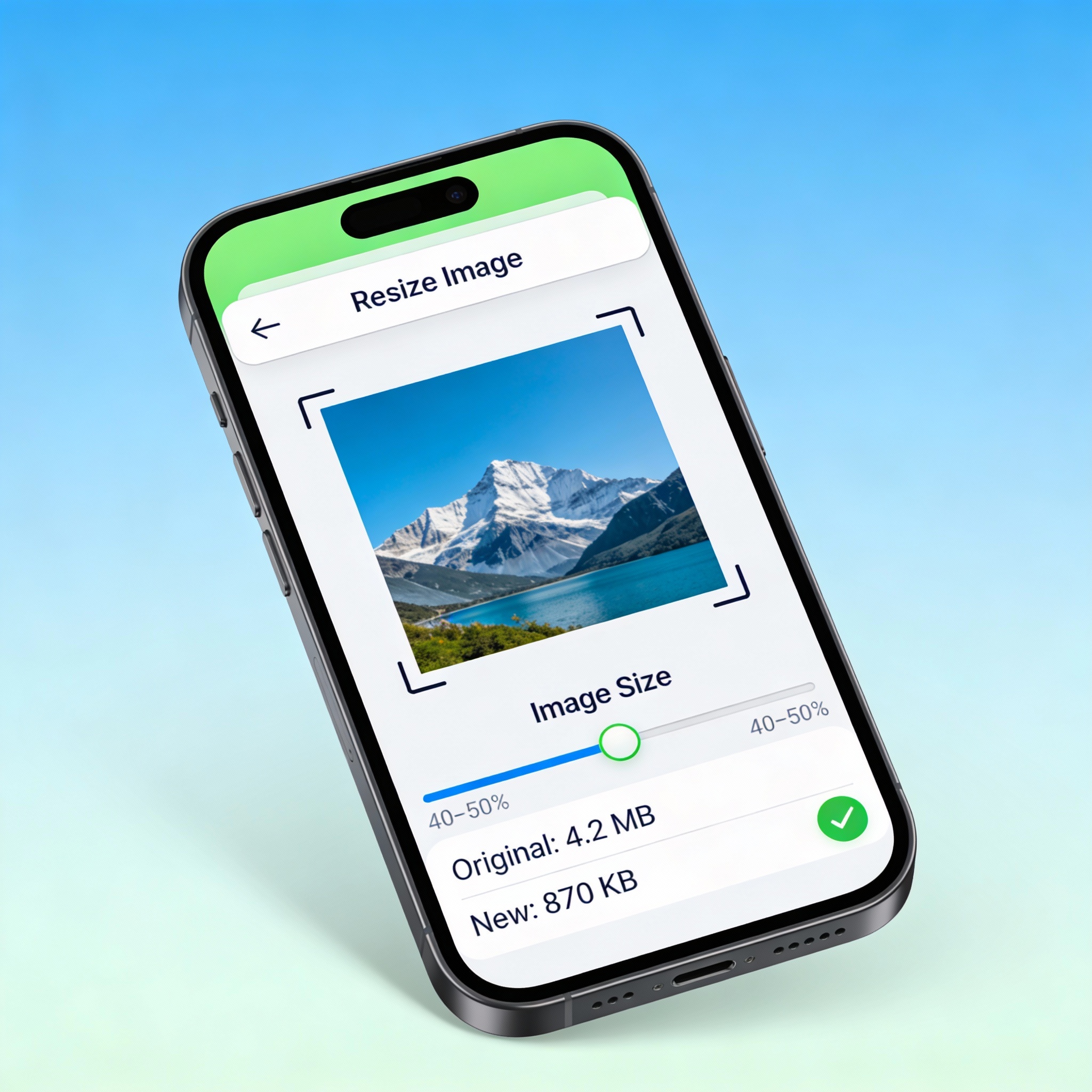

In today’s digital age, iPhone photography has become an essential part of our daily lives. Whether you’re capturing memorable moments with family, taking professional photos for work, or simply documenting your day, iPhone cameras continue to improve with each generation. However, one significant challenge iPhone users face is managing storage space, especially when dealing with large image files. Learning how to reduce image size on iPhone has become increasingly important for anyone looking to free up storage space, share photos more easily, or manage their digital library efficiently.
If you’re struggling with full storage on your iPhone or simply want to send photos faster via email or messaging apps, you’ve come to the right place. This comprehensive guide will walk you through various methods to reduce image size on iPhone, with particular focus on using the excellent online tool CompressNow.in, along with other native and third-party solutions available on iOS.
Why You Need to Reduce Image Size in iPhone
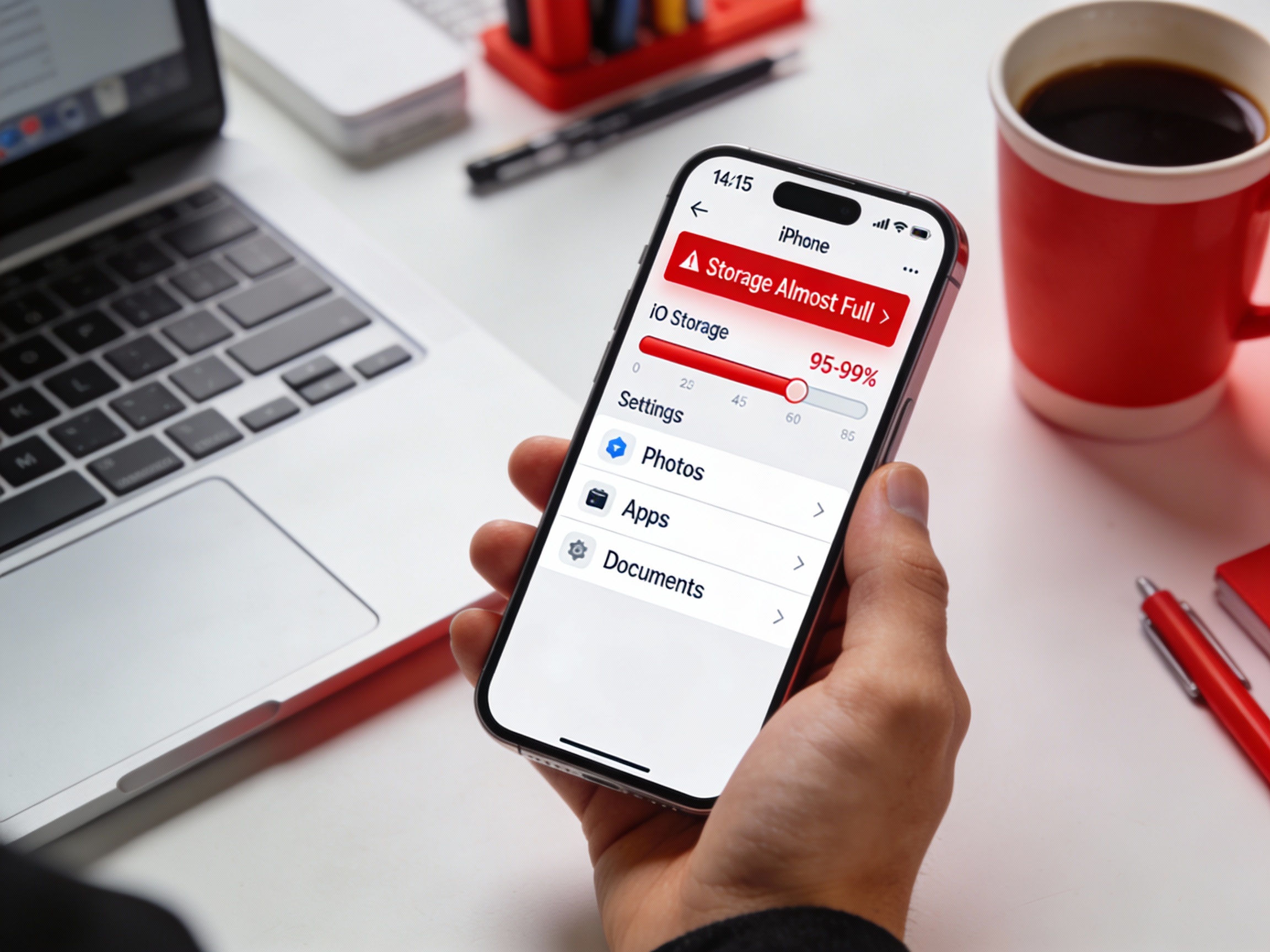
Modern iPhones capture stunning high-resolution photos, but these come at a cost—large file sizes that consume valuable storage space. A single 4K photo or video can easily take up several megabytes (MB), and if you’re an active photographer, you might quickly find yourself running out of storage.
How to reduce image size in iPhone becomes essential for several reasons:
- Limited Storage: iPhone storage is finite, and photos quickly consume available space
- Sharing Difficulties: Large image files are slow to upload to cloud services or send via email
- Cloud Backup Issues: Backing up large photo libraries to iCloud can be expensive
- Device Performance: Too many large files can slow down your iPhone’s overall performance
- App Updates: When storage is full, you can’t download or update apps
Understanding how to efficiently reduce image size in iPhone gives you more control over your device and ensures optimal performance.
Method 1: CompressNow.in –
The Best Online Tool to Reduce Image Size in iPhone
While native methods are useful, sometimes you need a dedicated compression tool. compressnow.in stands out as an excellent online solution to reduce image size on iPhone. Here’s why this platform is particularly effective:
- No App Installation Required: Since CompressNow.in is web-based, you don’t need to install anything on your iPhone
- Fast Processing: The platform uses advanced algorithms to quickly compress your images
- Multiple Compression Options: You can choose between lossy, glossy, and lossless compression
- Free to Use: Most basic features are available for free
- Privacy Focused: Your images are processed quickly and securely
Step-by-Step Guide: How to Reduce Image Size on iPhone Using CompressNow.in
Follow these simple steps to reduce image size on iPhone using CompressNow.in:
Step 1: Access the Website
- Open Safari or your preferred browser on your iPhone
- Navigate to CompressNow.in
- You’ll see a clean, user-friendly interface designed for image compression
Step 2: Upload Your Images
- Tap the upload area or drag and drop your photos
- You can upload multiple images at once
- Select photos from your Photos app or Camera Roll
Step 3: Choose Compression Settings
Select your preferred compression dimensions:
Step 4: Process Your Images
- Click the “Start” or “Compress” button
- CompressNow.in will process your images (usually takes seconds)
- The platform will show you the compression results and space saved
- Step 5: Download Your Compressed Images
Once processing is complete, click the download button
Your compressed images will be saved to your device
You can now upload these smaller files to cloud storage or share them easily
Method 2: Using Built-in iPhone Settings for Compression
The simplest way to reduce image size on iPhone is to leverage Apple’s built-in optimization features. Here’s how:
- Enable Optimize iPhone Storage
- Open the Settings app on your iPhone
- Navigate to Photos & Camera settings
- Select “Photos” from the menu
- Scroll down to find “Optimize iPhone Storage”
- Tap on this option to enable it
- This built-in feature automatically stores full-resolution images in iCloud while keeping optimized, smaller versions on your device. When you open a photo, it downloads the full-resolution version from iCloud temporarily. This is one of the most effective ways to reduce image size on iPhone without losing quality.
Change Your Camera Format Settings:
To ensure all future photos are smaller:
- Open Settings and go to Camera
- Tap on “Formats”
- Select “High Efficiency” instead of Most Compatible
- This switches your iPhone from capturing photos in JPEG format to HEIF format
- The HEIF (High Efficiency Image Format) produces files that are 2-5 times smaller than JPEG while maintaining the same visual quality.
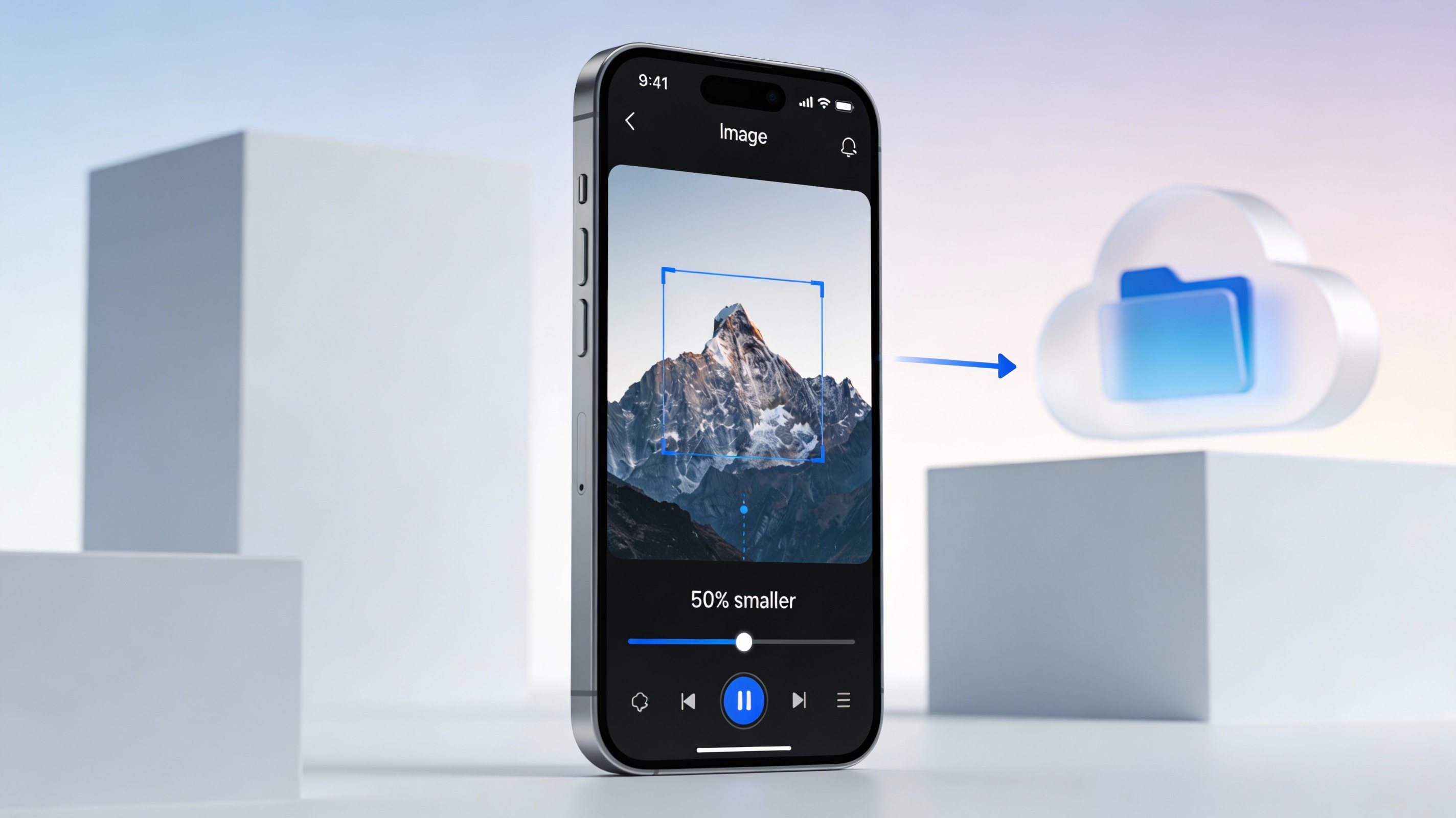
Method 3: How to Reduce Image Size in iPhone Using the Mail App
Many people don’t realize that the Mail app has a built-in compression feature that makes it easy to reduce image size on iPhone:
Open the Mail app and start composing a new email
- Tap the image icon to insert a photo
- Select the photo(s) you want to attach
- When you tap “Send,” a dialog box will appear
- You’ll be given four size options:
- Small (approximately 2.6 MB)
- Medium (approximately 6.4 MB)
- Large (approximately 12.8 MB)
- Actual Size
This method is perfect when you need to quickly reduce image size on iPhone for sharing purposes.
Method 4: Using Apple Shortcuts to Reduce Image Size in iPhone
The Shortcuts app offers a powerful and underrated method to reduce image size on iPhone:
Open the Shortcuts app on your iPhone
- Tap the “+” button to create a new shortcut
- Search for and add the “Select Photos” action
- Add the “Resize Image” action to your shortcut
- Set your desired dimensions (the app suggests 640 pixels as a starting point)
- Add the “Save to Photos” action
- Tap “Done” to save your shortcut
This method gives you complete control over dimensions and allows you to reduce image size on iPhone in batch mode if needed.
Advanced Tips: Get the Most from Image Compression
To truly master how to reduce image size in iPhone, consider these advanced techniques:
Batch Processing
When using CompressNow.in, upload multiple images at once to reduce image size on iPhone more efficiently. This saves time compared to processing files individually.
Resolution Adjustment
Lower the megapixel setting in your Camera settings (usually from 12 MP to a lower option) if reduce image size on iPhone is a constant concern.
Remove Metadata
CompressNow.in and other tools often allow you to strip EXIF data (location, camera settings, etc.) from photos, which reduces file size further while maintaining visual quality.
Format Conversion
Converting images to WebP format through CompressNow.in can achieve even better compression than JPEG or HEIF formats.
Conclusion
Learning how to reduce image size in iPhone is essential in today’s smartphone-centric world. Whether you choose to use Apple’s built-in features, utilize the powerful CompressNow.in online tool, or employ third-party applications, you have multiple effective options at your disposal.
For those seeking the best balance of simplicity and compression power, CompressNow.in remains an excellent choice to reduce image size on iPhone without complicated processes or app installations. The platform’s user-friendly interface makes it accessible to everyone, from casual iPhone users to photography enthusiasts.
Start implementing these methods today, and you’ll quickly notice improved storage space, faster file sharing, and better overall device performance. Whether your goal is to reduce image size on iPhone for archival purposes, sharing on social media, or simply maintaining optimal device performance, these strategies will serve you well.
Remember, the best method is the one you’ll actually use. Experiment with different approaches to reduce image size on iPhone and find the workflow that works best for your needs.
Will reducing image size in iPhone affect photo quality?
Lossless compression (which CompressNow.in offers) maintains quality while reducing file size. You’ll notice minimal to no quality loss.
How much can I reduce image size in iPhone?
Depending on the compression method and settings, you can typically reduce file sizes by 50-75% without noticeable quality degradation.
Can I reduce image size in iPhone offline?
Yes, using built-in methods like Optimize iPhone Storage, HEIF format, and Shortcuts work without an internet connection.
Is it safe to use online tools like CompressNow.in to reduce image size in iPhone?
Reputable compression sites such as CompressNow.in process images over encrypted connections and delete files after a short time, which makes them reasonably safe for everyday photos. However, you should avoid uploading highly sensitive images (IDs, medical documents, etc.) and always check the site’s privacy policy and deletion policy before use.fotor+2
reduce image size in iphone reduce image size in iphone reduce image size in iphone reduce image size in iphone reduce image size in iphone