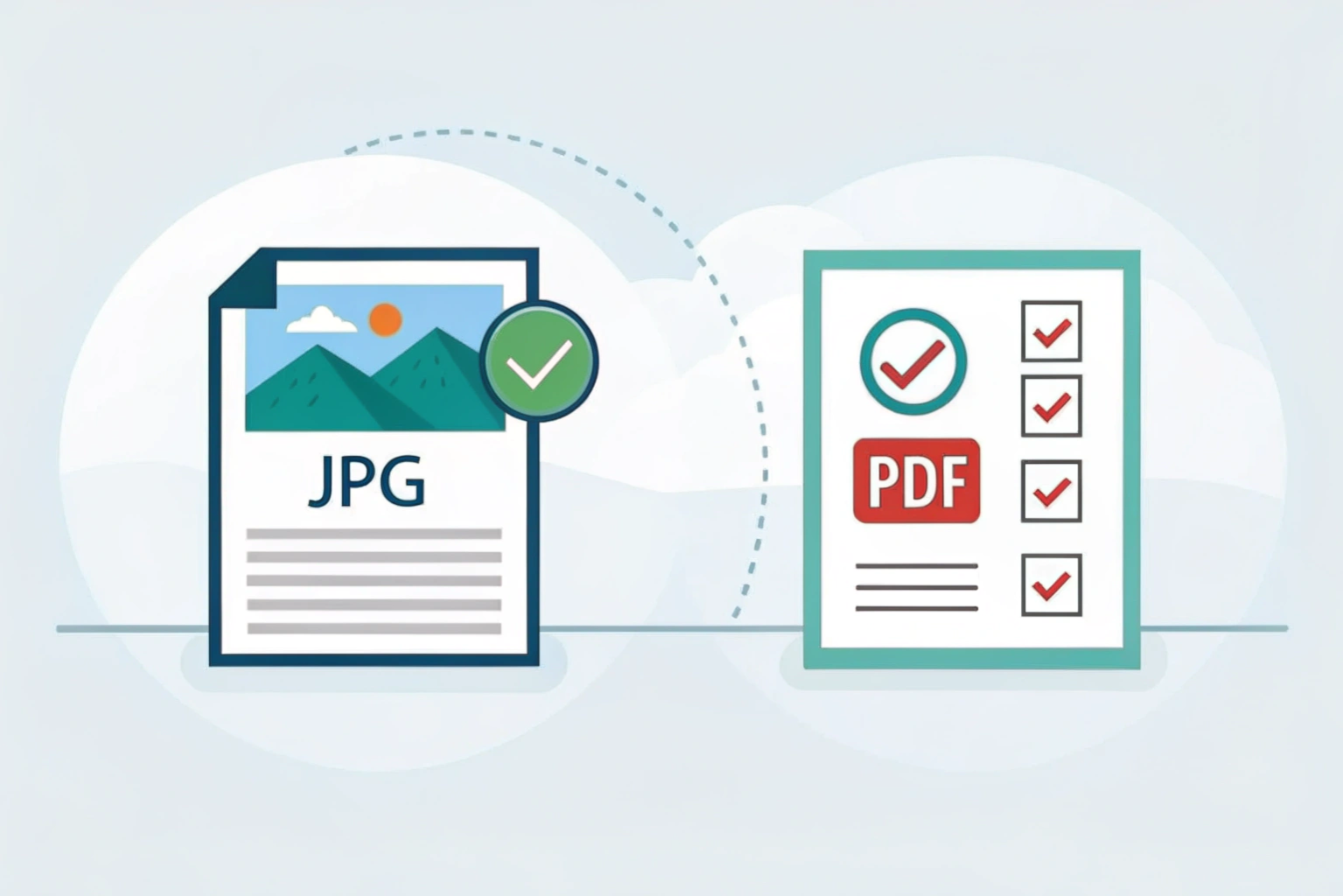

How to convert HEIC to JPG on Android starts with understanding the difference between these two popular image formats. HEIC and JPG both store photos, but they work differently and serve different purposes.
Why HEIC images are common on smartphones
HEIC is a modern format mainly used by iPhones and some newer devices. Phones use HEIC because it keeps photo quality high while taking up less storage. This means you can save more photos without filling your phone memory quickly. HEIC also supports richer colors and sharper details, making images look clearer. For smartphones that capture many pictures every day, this format is very efficient.
Importance of JPG format for Android users
JPG is the most widely supported image format, especially on Android devices. Android users prefer JPG because it works seamlessly with almost all apps, websites, and devices. Sharing, editing, and uploading JPG photos is simple and hassle-free. Unlike HEIC, JPG rarely causes compatibility issues, making it the safest choice for everyday use and for sharing images across platforms.
What Is HEIC and Why Android Users Need JPG
HEIC is an image format that is mostly used by iPhones and some modern devices. It stands for High Efficiency Image Container and is designed to store photos in high quality while using less storage space. Because of this, many photos taken on iPhones are saved in HEIC format by default.
Overview of the HEIC image format
HEIC helps save space without reducing image quality too much. It supports better colors, sharper details, and even features like live photos. While it works well on Apple devices, not all apps and systems support HEIC smoothly, especially on older or budget Android phones.
HEIC vs JPG: format comparison
When comparing HEIC and JPG, the main difference is compatibility. HEIC files are smaller and more advanced, but JPG files work almost everywhere. JPG images can be opened, edited, and shared on nearly all devices and platforms without any extra steps. HEIC files may require conversion before they can be used properly on some apps.
Why JPG is more compatible on Android
JPG is the most widely supported image format on Android. Almost every Android app, gallery, and social media platform accepts JPG files without issues. This makes JPG the safer and more convenient choice for Android users who want to share photos easily and avoid compatibility problems.
Can Android Open HEIC Files by Default?
Many Android users wonder if their phones can open HEIC images without any extra steps. The answer depends on the Android version and the apps installed on the device.
HEIC support in different Android versions
Newer versions of Android generally support HEIC files, especially Android 9 and above. Most modern Android phones can view HEIC images in the gallery app without any problem. However, older Android versions may not recognize this format at all, which can make the image fail to open or appear as an unsupported file.
Common issues while opening HEIC images
Even if an Android phone supports HEIC, users may still face issues. Some gallery apps, photo editors, or social media apps do not handle HEIC files properly. Images may not load, may appear blank, or may fail to upload. Sharing HEIC images with other devices can also cause problems if the receiving device does not support the format.
Situations where conversion is required
Conversion becomes necessary when the HEIC image does not open, cannot be edited, or fails to upload on apps and websites. It is also useful when sharing photos with people who use older Android phones or non-Apple devices. Converting HEIC to JPG ensures the image works everywhere without compatibility issues.
How to Convert HEIC to JPG on Android Using Gallery App
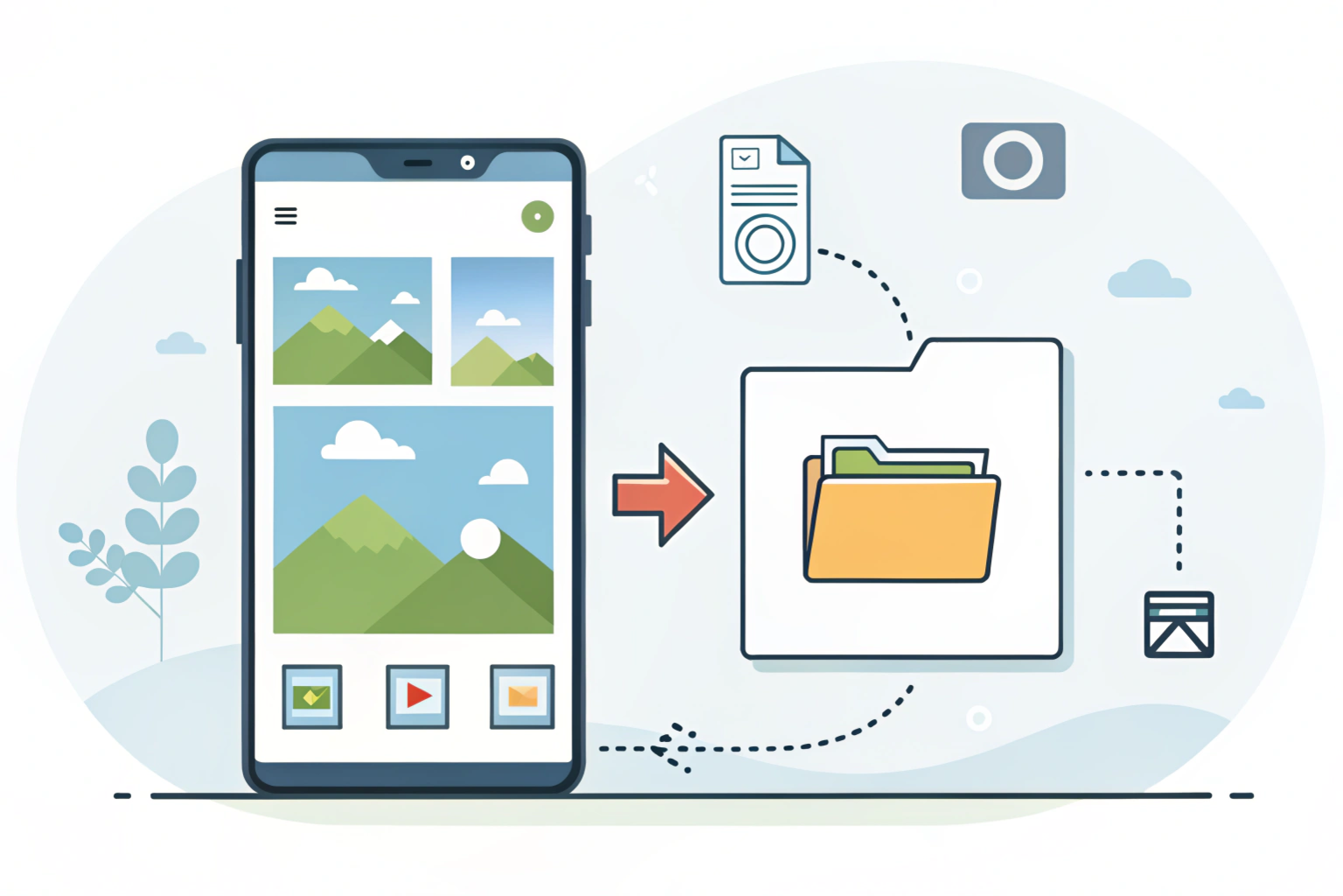
Many Android phones allow basic handling of HEIC images directly from the gallery app. While not all devices offer full conversion features, some make it possible to save or share images as JPG without installing extra apps.
Built-in conversion options in Android gallery
On some Android devices, the gallery app automatically converts HEIC images to JPG when you share them. For example, when sending a photo through WhatsApp, email, or Bluetooth, the phone may change the format in the background. A few gallery apps also provide an export or save as option, which lets you choose JPG as the output format.
Steps to save HEIC photos as JPG
First, open the Gallery app and select the HEIC photo you want to convert. Tap the share icon and choose an app like email or messaging. In many cases, the image is saved or sent as a JPG automatically. On some phones, you can also edit the photo and then save a copy, which may store it as a JPG instead of HEIC.
Limitations of using the gallery app
The main limitation is that not all Android gallery apps support manual conversion. Some phones do not give any clear option to choose the output format. You also cannot convert multiple HEIC images at once on most gallery apps. If you need batch conversion or more control, using a dedicated converter app becomes a better option.
Convert HEIC to JPG on Android with Google Photos
Google Photos is a simple and reliable way to handle HEIC images on Android. In many cases, it converts images automatically, which makes things easier for users who do not want to deal with manual steps.
Syncing HEIC photos with Google Photos
When you upload HEIC photos to Google Photos, the app usually handles the format without any issues. You just need to turn on backup and sync. Once uploaded, the photos can be viewed on any device using the Google Photos app or website, even if the device does not fully support HEIC.
Downloading images in JPG format
After a HEIC image is uploaded to Google Photos, you can download it as a JPG. When you save the photo back to your Android phone or download it from the web version, Google Photos often converts it to JPG automatically. This makes it easy to get a more compatible version of the image without using a separate converter.
Benefits and drawbacks of Google Photos
The biggest benefit of Google Photos is convenience. It works across devices and does not require extra tools for basic conversion. However, it does rely on an internet connection, and free storage is limited. Image quality may also be slightly reduced depending on the backup settings you choose.
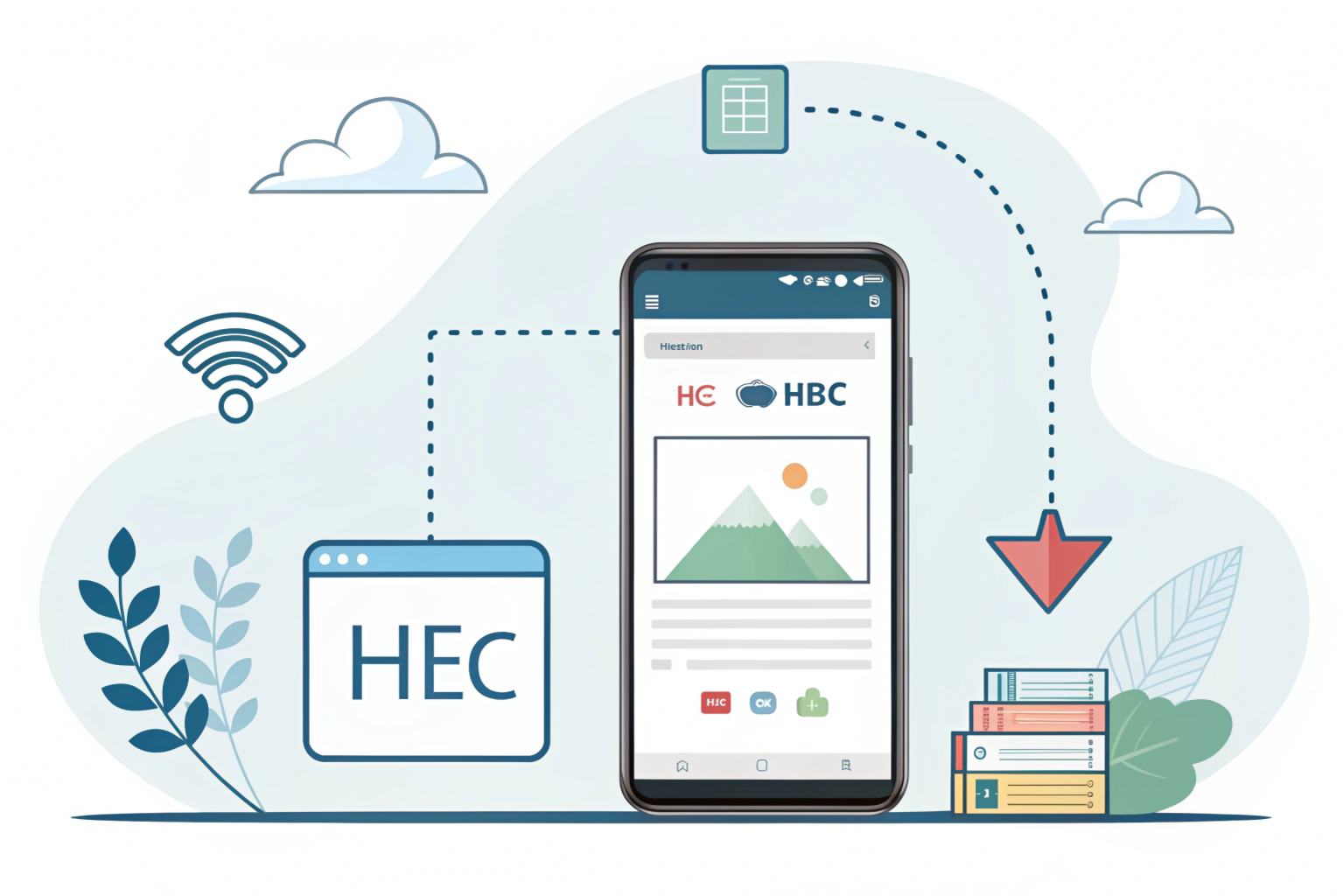
Online tools are a quick option when you need to convert HEIC images to JPG without installing any apps. They work directly through your mobile browser and are useful for one time or occasional conversions.
Popular HEIC to JPG online converters
There are many websites that offer free HEIC to JPG conversion. Some popular ones include CloudConvert, iLoveIMG, HEICtoJPG, and Convertio. These tools are easy to use and usually support uploading one or multiple images at a time. Most of them work well on Android browsers like Chrome.
Converting HEIC files through mobile browser
To convert a HEIC file, open your browser and visit an online converter website. Upload the HEIC image from your phone storage, choose JPG as the output format, and start the conversion. Once the process is complete, download the JPG image back to your device. The whole process usually takes just a few seconds.
Privacy, speed, and file size considerations
Since online tools upload your photos to a server, privacy is something to keep in mind, especially for personal images. Conversion speed depends on your internet connection and the file size. Larger images may take longer to upload and download. It is best to use trusted websites and avoid uploading sensitive photos when possible.
Best Free HEIC to JPG Converter Apps for Android
If you often receive HEIC images, using a dedicated converter app can save time and effort. Many free apps on Android make the conversion process quick and simple.
Trusted HEIC converter apps for Android
Some popular and reliable HEIC to JPG converter apps include Luma HEIC Converter, HEIC Converter by iMobie, and Image Converter apps available on the Play Store. These apps are generally easy to use and support quick conversions without needing technical knowledge.
Features to consider before installing an app
Before installing any converter app, check if it supports batch conversion so you can convert multiple images at once. Look for apps that work offline, as this helps protect privacy and saves data. A clean interface, fewer ads, and no forced sign ups also make the experience better.
Comparing app performance and output quality
Most good converter apps produce JPG images that look very similar to the original HEIC files. Performance may vary depending on your phone speed and the number of images being converted. Some apps may slightly reduce image quality to save space, so it is a good idea to test with one image before converting everything.
HEIC to JPG Conversion: Quality, Size, and Compatibility
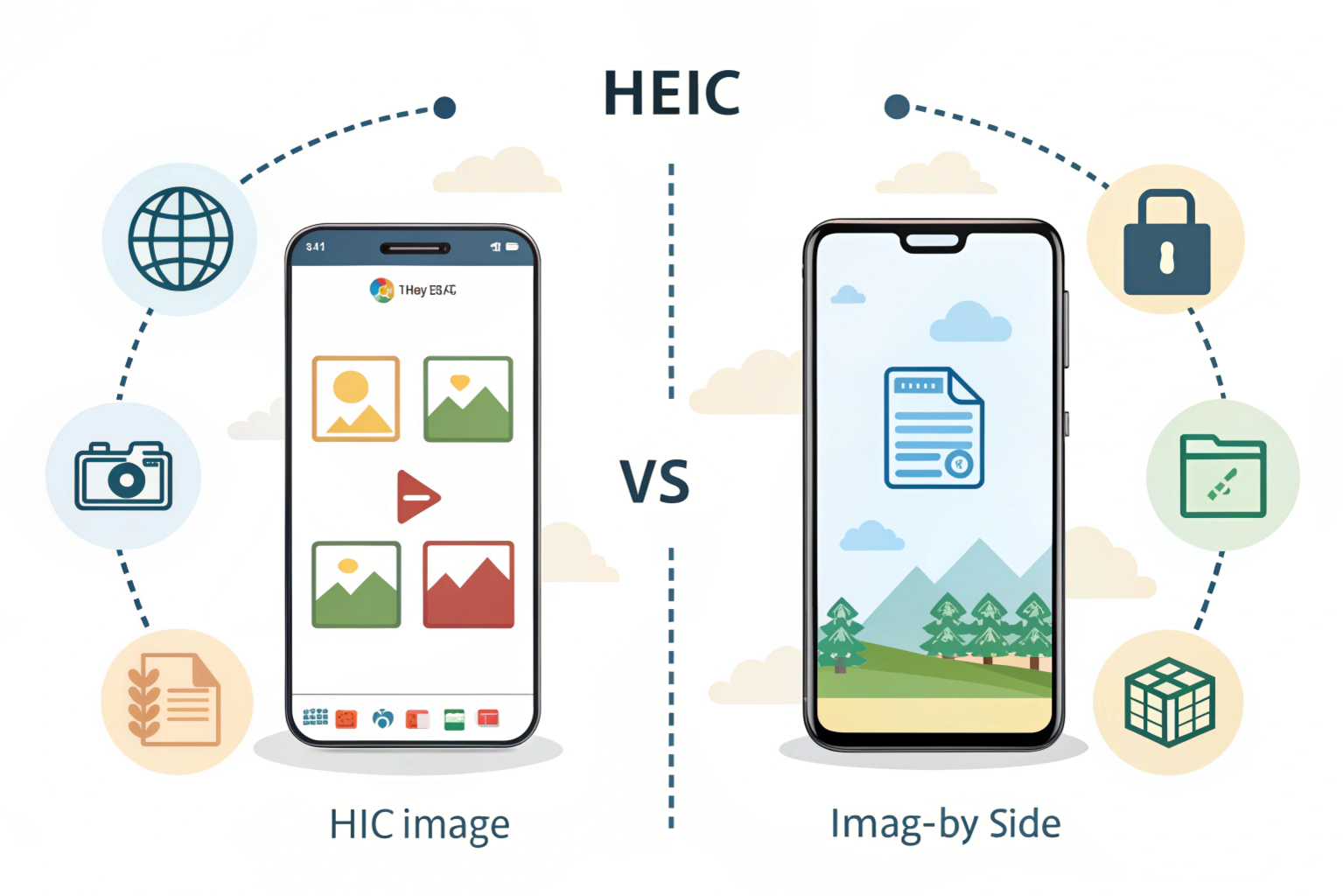
When converting HEIC images to JPG, many users worry about quality and file size. Understanding how the conversion works can help you get the best results.
Image quality after conversion
In most cases, the image quality remains very good after converting HEIC to JPG. You may not notice any visible difference, especially when viewing photos on a phone screen. However, if the conversion uses high compression, slight loss of detail can happen. Choosing good converter tools helps maintain the original look of the image.
File size differences between HEIC and JPG
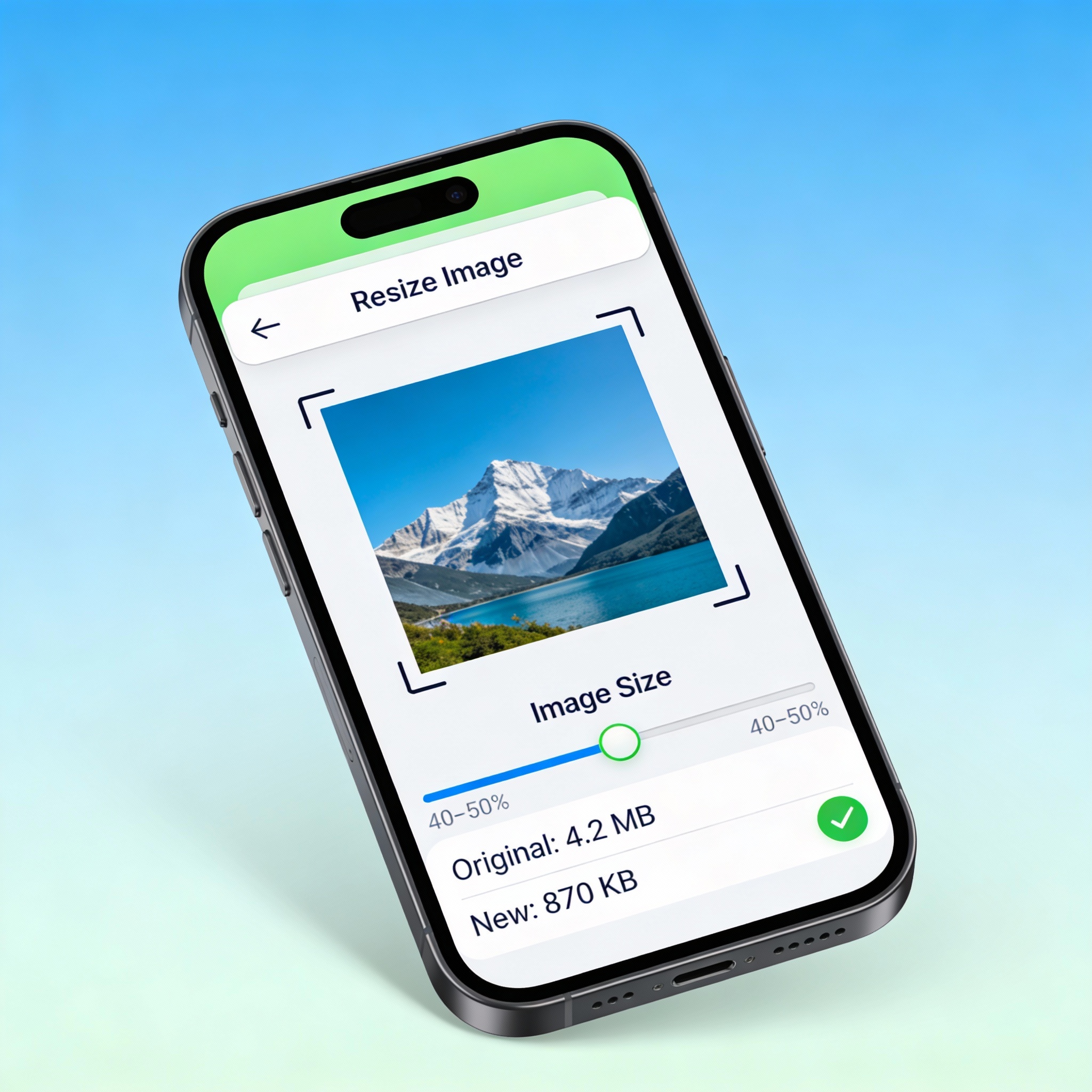
HEIC files are usually smaller than JPG files because they use advanced compression. After conversion, the JPG file often takes up more storage space. This is normal and expected. While the file size increases, the benefit is better compatibility across apps, devices, and websites.
Best practices for maintaining image clarity
To keep images clear, always use trusted apps or tools for conversion. Avoid converting the same image multiple times, as this can reduce quality. If the tool allows you to choose quality settings, select high or maximum quality. Keeping the original HEIC file as a backup is also a smart idea.
Conclusion
Converting HEIC images to JPG on Android does not have to be complicated. The best method really depends on how often you need to convert images and what matters most to you, like speed, privacy, or image quality.
Choosing the right conversion method
If you only need to convert a few images, using Google Photos or an online tool can be quick and easy. For regular conversions or multiple images, a dedicated HEIC to JPG converter app is usually the better choice. Built in gallery options are useful, but they may not be available on all devices.
Final thoughts for Android users
JPG remains the most compatible image format for Android users. It works smoothly across apps, websites, and devices. Keeping a simple conversion method ready helps avoid sharing and viewing issues. With the right tool, you can convert HEIC images easily without losing much quality.