
Images play an important role in our daily digital work, whether it’s for websites, social media, presentations, or personal use. Among the most commonly used image formats are PNG and JPG, each serving a different purpose. While PNG images offer high quality and transparency, they often come with larger file sizes. This is where JPG becomes a better choice for faster loading and easier sharing.
If you’re wondering how to convert PNG to JPG, you’re in the right place. In this guide, we’ll walk you through simple and effective methods to convert PNG images into JPG format on Windows, Mac, mobile devices, and online tools—without losing noticeable image quality. Whether you’re a beginner or someone looking for quick solutions, this blog will help you choose the best method based on your needs.
PNG vs JPG: Key Differences
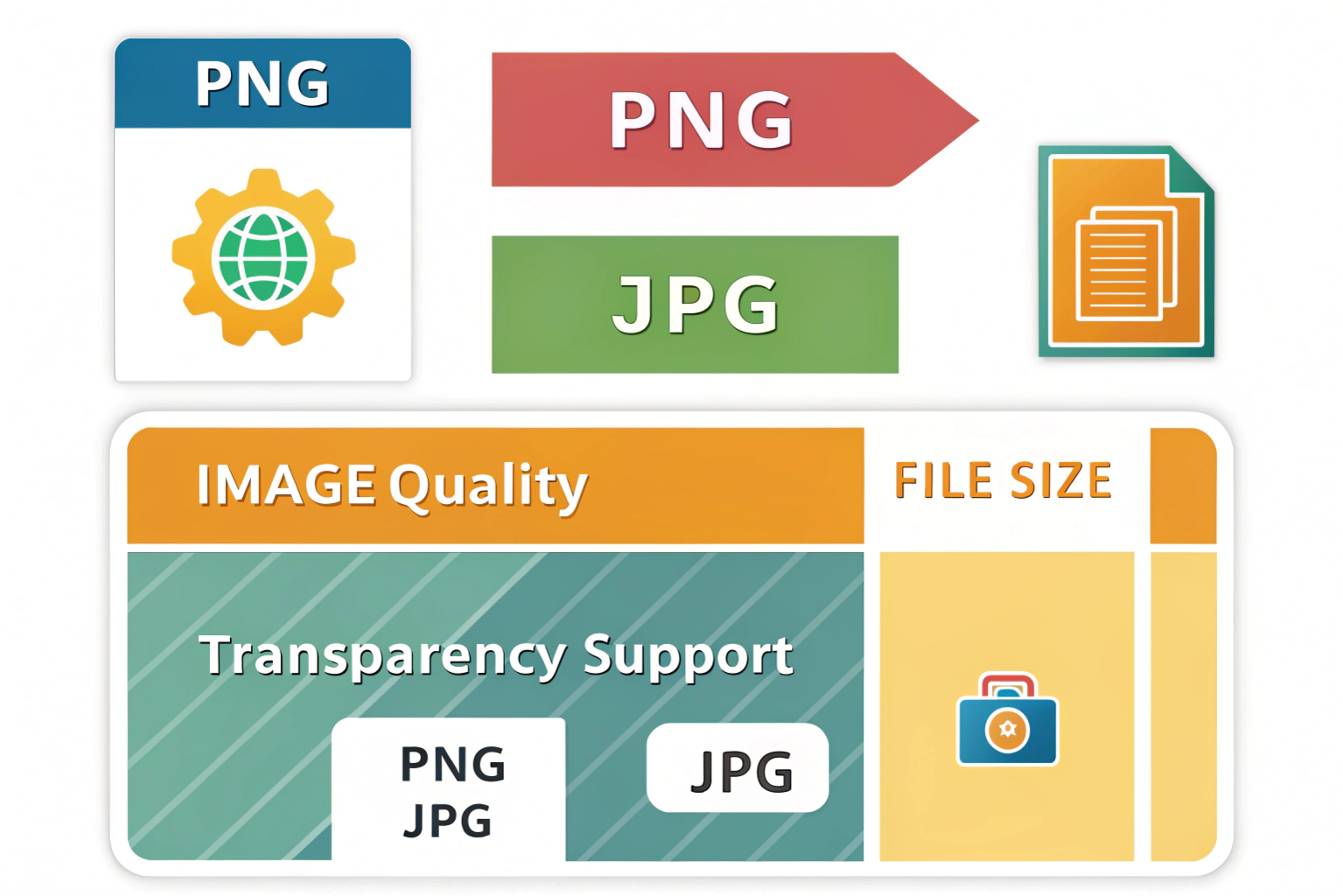
PNG and JPG are both popular image formats, but they are designed for different purposes. Understanding their key differences will help you choose the right format and know when converting PNG to JPG actually makes sense.
Image Quality
PNG images are known for their high quality. They use lossless compression, which means no image data is lost when the file is saved. This makes PNG a great choice for logos, icons, and graphics with sharp edges or text.
JPG images use lossy compression. This means some image details are removed to reduce file size. In most cases, the quality loss is barely noticeable, especially for photos. However, if you keep saving a JPG multiple times, the image quality can slowly decrease.
File Size
PNG files are usually larger in size because they keep all image details intact. This can be a problem when you need faster website loading or want to share images quickly.
JPG files are much smaller compared to PNG. Because of this, JPG is widely used for websites, social media, and emails. Smaller file size means faster loading and easier storage.
Transparency Support
PNG supports transparency, which allows parts of the image to be fully transparent. This is very useful for logos, icons, and images that need a clean background.
JPG does not support transparency. If you convert a transparent PNG to JPG, the transparent areas are usually replaced with a white or solid-colored background.
Things to Know Before Converting PNG to JPG
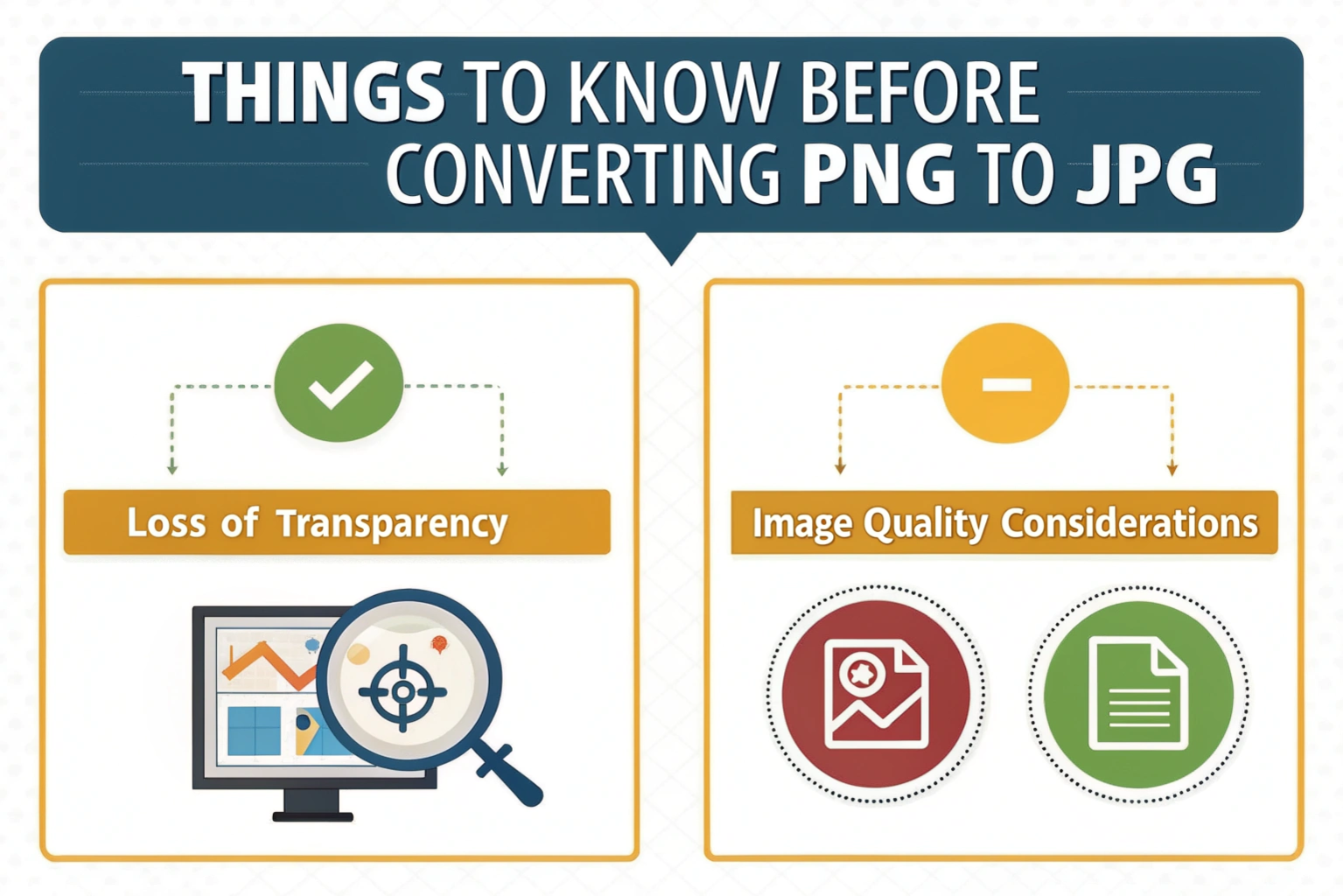
Before converting a PNG image to JPG, it’s important to understand a few key points. This will help you avoid unexpected results and choose the right settings for your image.
Loss of Transparency
One of the biggest things to remember is that JPG does not support transparency. If your PNG image has a transparent background, it will not stay transparent after conversion.
When you convert a transparent PNG to JPG, the background usually turns white or into a solid color. This can be an issue for logos, icons, or images that need to blend with different backgrounds. If transparency is important, it’s better to keep the image in PNG format.
Image Quality Considerations
JPG images use compression to reduce file size, which means some image details may be lost during conversion. In most cases, this quality loss is not noticeable, especially for regular photos.
However, if the image contains text, sharp lines, or fine details, the JPG version might look slightly blurred. To avoid this, always choose a high-quality or low-compression setting when converting PNG to JPG.
How to Convert PNG to JPG on Windows
If you are using a Windows computer, converting a PNG image to JPG is quick and easy. Windows already comes with built-in apps that let you do this without installing any extra software.
Using Paint
Paint is one of the easiest tools to convert PNG to JPG on Windows.
First, right-click on your PNG image and open it with Paint. Once the image opens, click on File in the top-left corner and select Save as. From the available options, choose JPEG picture.
Now select the folder where you want to save the image, give it a name, and click Save. Your PNG image will be converted to JPG instantly.
Using Photos App
The Photos app is another simple option for converting PNG to JPG.
Open your PNG image with the Photos app. Click on the three-dot menu at the top and select Save as. From the file format options, choose JPEG.
After that, choose the location where you want to save the image and click Save. The image will be saved in JPG format and ready to use.
How to Convert PNG to JPG on Mac
Converting a PNG image to JPG on a Mac is very easy. You do not need to download any extra software. Mac already has built-in tools that can do this in just a few clicks.
Using Preview
Preview is the default image viewer on Mac and it is the easiest way to convert PNG to JPG.
First, double-click the PNG image to open it in Preview. Now click on File from the top menu and select Export.
In the format option, choose JPEG. You can move the quality slider if you want better image quality. After that, choose where you want to save the image and click Save. Your PNG image is now converted to JPG.
Bulk Conversion Options
If you have many PNG images, you can convert all of them at once.
Select all the PNG images you want to convert. Right-click on them and choose Quick Actions, then click Convert Image.
Now select JPEG as the format and click Convert to JPEG. All selected images will be converted at the same time, which saves a lot of effort.
How to Convert PNG to JPG on Mobile
You can easily convert PNG images to JPG using your mobile phone. Whether you are using Android or iPhone, there are simple ways to do this without needing a computer.
Android Devices
On Android phones, you can convert PNG to JPG using built-in apps or free apps from the Play Store.
First, open the PNG image using the Gallery or Photos app. Tap on the Edit option and look for Save as or Export. Choose JPG or JPEG as the format and save the image.
If your phone does not show this option, you can download a free image converter app from the Play Store. Open the app, select the PNG image, choose JPG as the output format, and save it. The process takes only a few seconds.
iPhone (iOS)
On iPhone, converting PNG to JPG is also very simple.
Open the Files app and locate your PNG image. Tap and hold the image, then select Quick Actions and choose Convert Image. Select JPEG as the format and confirm.
You can also use free image converter apps from the App Store if needed. Just upload the PNG image, choose JPG as the format, and save it back to your phone.
How to Convert PNG to JPG Online
If you do not want to install any software, online tools are a great option. You can convert PNG to JPG directly from your browser in just a few clicks. These tools work on Windows, Mac, and mobile devices.
Free Online Tools
There are many free websites that allow you to convert PNG images to JPG. These tools are easy to use and do not require any technical knowledge.
Most online converters let you upload your PNG image, convert it to JPG, and download the result instantly. They are perfect for quick conversions, especially when you only have one or two images to convert.
Check out Free online PNG to JPG Converter.
Step-by-Step Process
First, open any trusted PNG to JPG online converter in your browser. Upload your PNG image by clicking on the upload button or dragging the file.
Once the image is uploaded, select JPG or JPEG as the output format. Click on the convert button and wait for a few seconds.
After the conversion is complete, download the JPG image to your device. Your image is now ready to use.
Best Tools to Convert PNG to JPG
There are many tools available to convert PNG images to JPG. Some are completely free, while others are paid and offer extra features. The best tool for you depends on how often you convert images and what features you need.
Free Tools
Free tools are perfect if you only need to convert images occasionally.
Built-in tools like Paint on Windows and Preview on Mac are great free options. You can also use free online converters that work directly in your browser without installing anything.
Free mobile apps are another good choice if you prefer converting images on your phone. These tools are simple and usually get the job done quickly.
Paid Tools
Paid tools are useful if you work with images regularly or need advanced features.
These tools often offer better quality control, bulk conversion, and faster processing. They are commonly used by designers, photographers, and content creators.
If you convert a large number of images or need professional-level results, a paid tool can be a good investment.
Conclusion
Converting PNG to JPG is easy, whether you are using a computer, mobile device, or an online tool. The method you choose depends on your needs, the number of images, and whether you want to maintain image quality.
Best Method Based on Your Needs
For one or two images: Using built-in apps like Paint on Windows or Preview on Mac is the quickest option.
For multiple images: Bulk conversion using Mac Quick Actions or desktop software saves time.
For mobile users: Free apps on Android or iPhone make conversion fast and simple.
For occasional online use: Free online tools work well for quick conversions without installing anything.
For professionals: Paid tools provide better quality, batch processing, and extra features.
Choose the method that fits your situation, and you’ll have your PNG images converted to JPG in no time.
Need to Compress or Convert Files?
Try CompressNow.in - Free, Fast & Secure file compression and conversion tools!

Author Bio – Tanishk Singh
Tanishk Singh is a Digital Marketing Strategist, SEO Specialist, and Web Technology Expert with over 4+ years of hands-on experience in building, ranking, and monetizing high-performance web platforms.
He has helped scale organic traffic for multiple education and SaaS websites, including increasing Shoolini Online’s SEO traffic from 800 to 20,000+ users in just 2.5 months using advanced content architecture, AI-driven SEO, and Google SGE optimization.
Tanishk specializes in creating AI-powered web tools, performance-optimized platforms, and SEO-focused websites that rank, convert, and generate consistent revenue.